Lab: Managing Ansible Content with Private Automation Hub
We will create a custom Collection, publish it to a Private Automation Hub (PAH), build a custom Execution Environment (EE) from a Red Hat certified base image, and finally, run the automation from Ansible Automation Controller.
Content management is a critical component of enterprise automation. Instead of publishing and retrieving content directly from public sources, automation assets will be sourced from a local and trusted content source. This lab will guide you through the process of creating and publishing Ansible Content Collections to a Private Automation Hub, building custom Execution Environments, and integrating them with Ansible Automation Controller.
Learning Objectives
After completing this module, you will be able to:
-
Understand the role and benefits of Private Automation Hub
-
Create and publish custom Ansible Collections
-
Build custom Execution Environments
-
Integrate Collections with Automation Controller
-
Manage content lifecycle in enterprise environments
1. Introduction: The Role of Private Automation Hub
A Private Automation Hub (PAH) acts as a central repository containing curated and trusted automation content. It allows you to manage, share, and control access to a curated set of Execution Environments and Ansible Content Collections.
1.1: Importance of Private Automation Hub?
Private Automation Hub provides several key benefits for enterprise automation:
-
Centralized Control: A single source of truth for all your certified automation content.
-
Security & Trust: Ensures that teams are using approved and vetted collections and EEs.
-
Dependency Management: Simplifies dependency resolution by providing a private, trusted source for collections.
-
Scalability: Enables the distribution of automation content across large organizations.
2. Lab Setup: Configuring Your Environment
First, let’s configure the steps that your Dev Spaces environment needs to communicate with your Private Automation Hub.
2.1: Configure Ansible to Use PAH via Environment Variables
Instead of creating an ansible.cfg configuration file with your secret token that is used to communicate with PAH, we will set environment variables. This is a more secure practice for local development as it prevents tokens from being accidentally committed to source control.
2.1.1: Obtaining Your PAH API Token
Utilize the following steps to obtain your PAH API token:
-
Launch the Private Automation Hub web interface and login using the credentials from the Environment Details page.
-
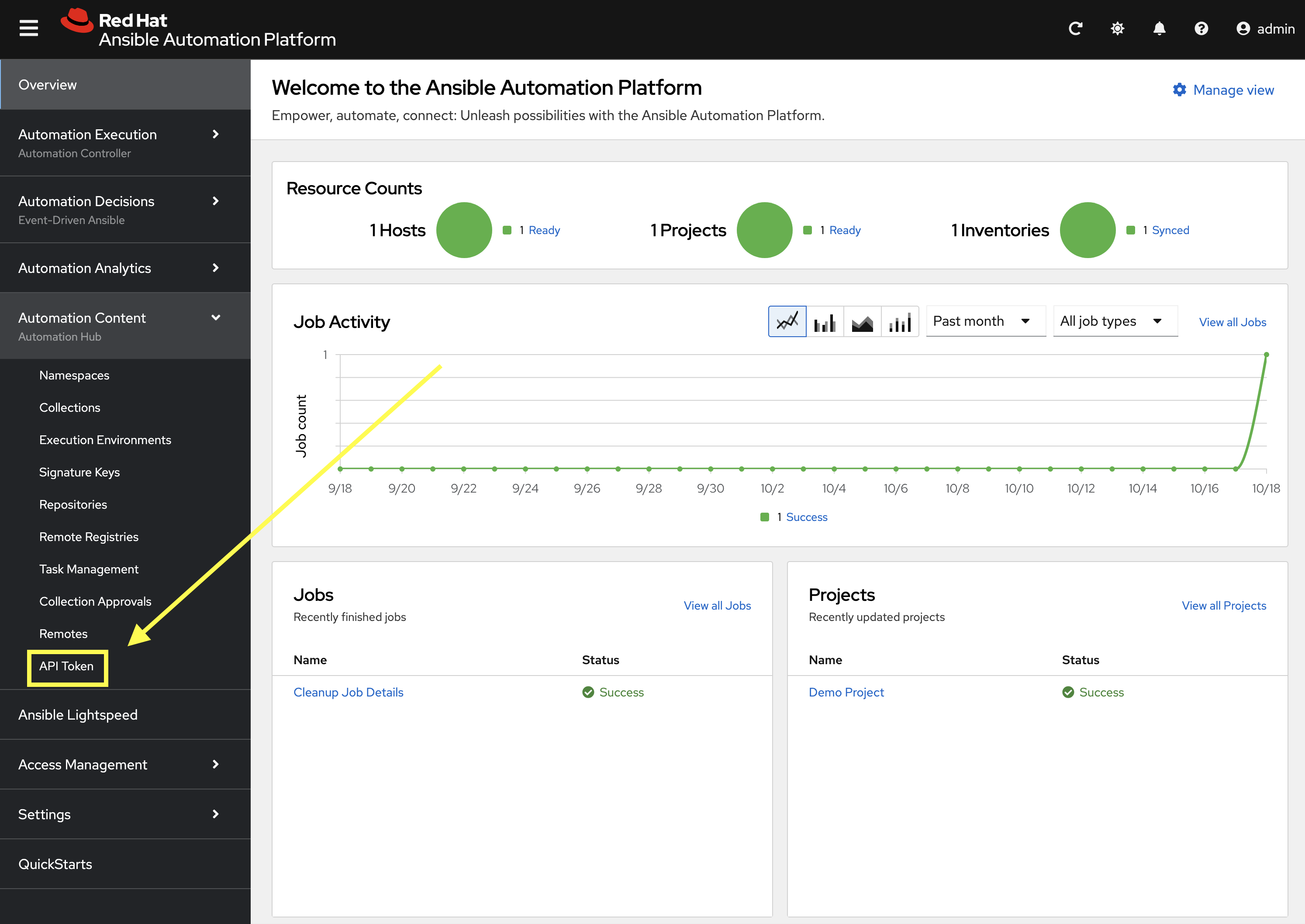
From the navigation menu on the left, expand Automation Content and click on API Token.
-
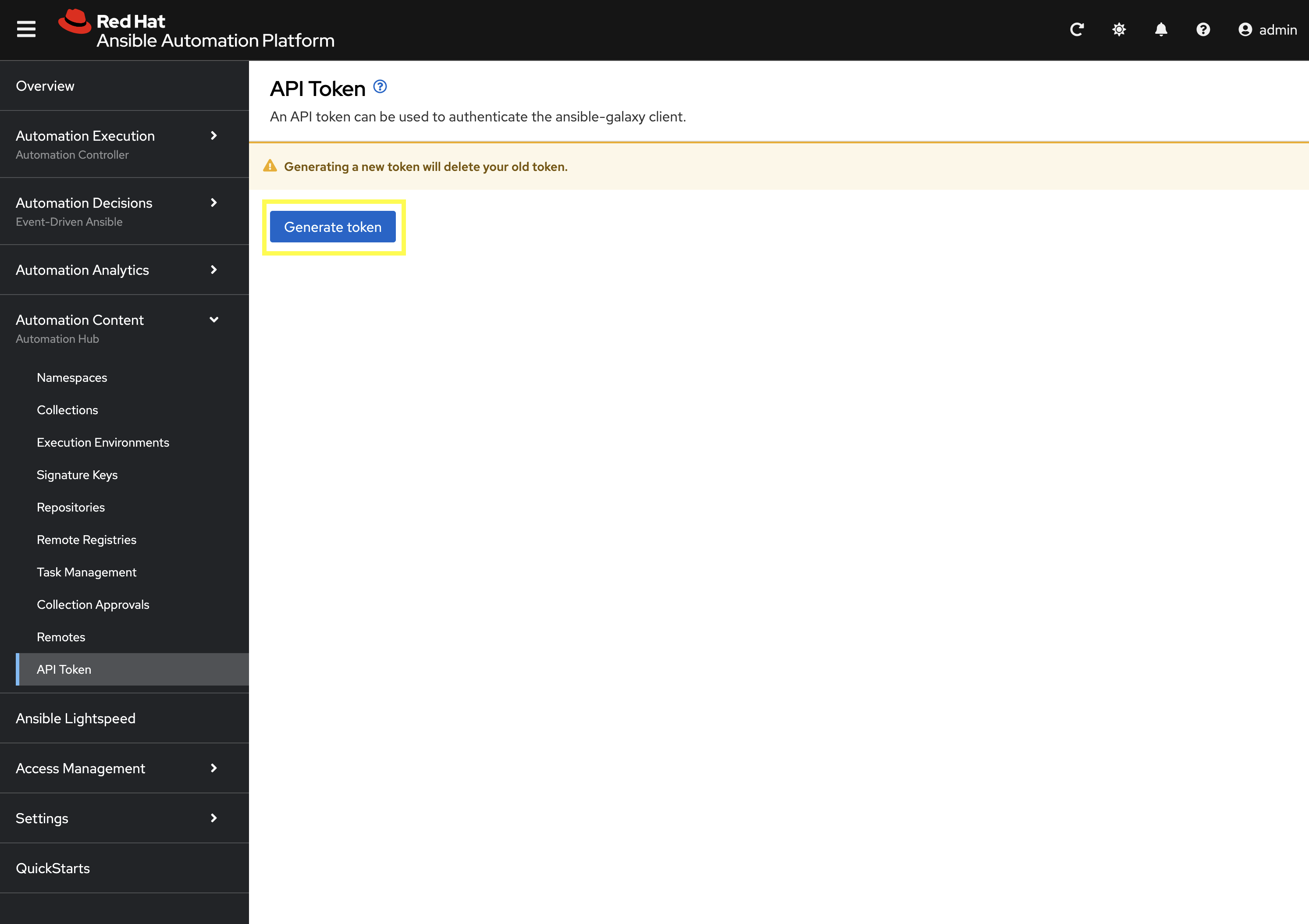
On the API Token page, click the Generate token button. Your API token will be displayed.
-
Click the Copy to clipboard icon to copy it.
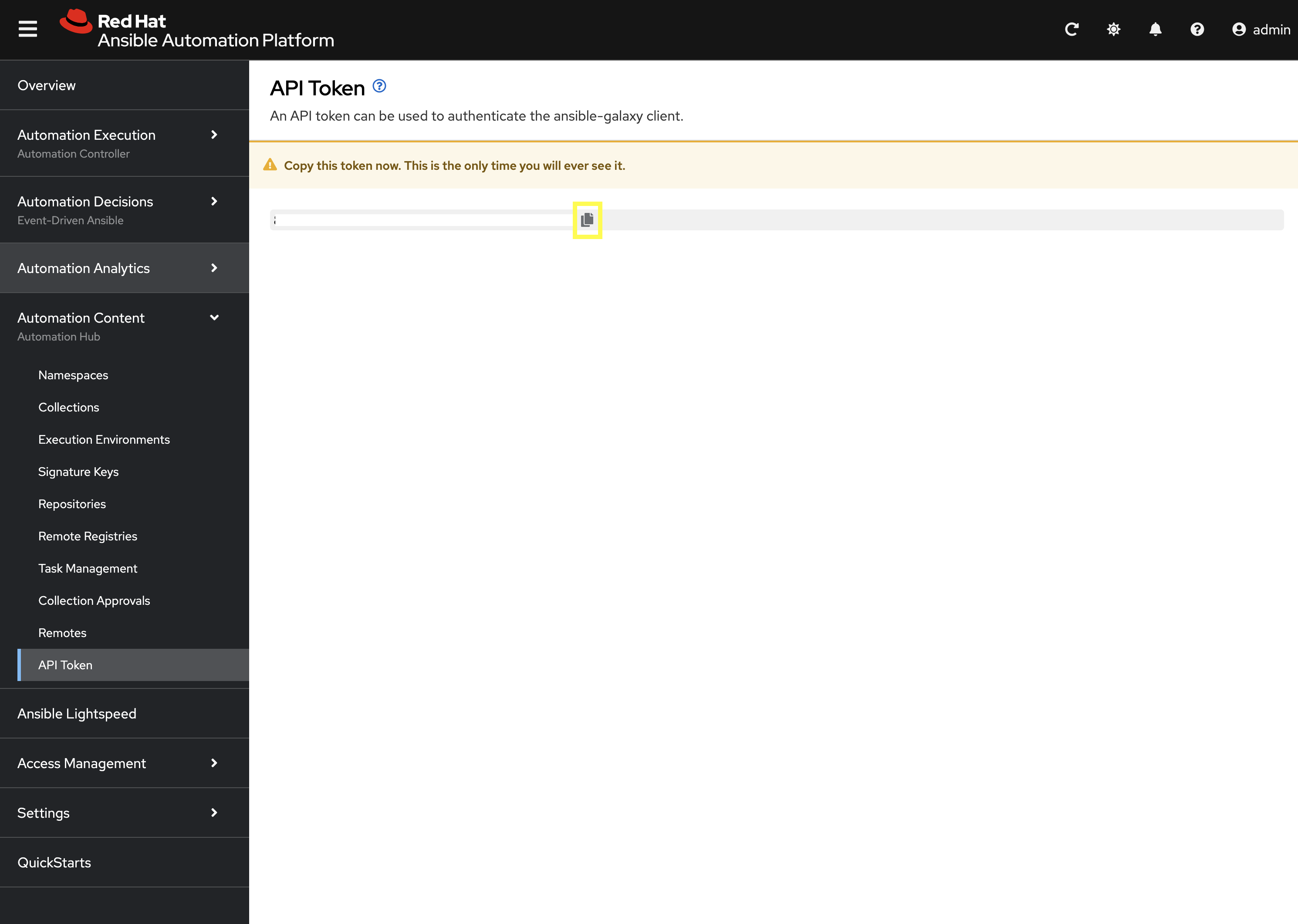
| Make sure to store the token securely, as it will not be displayed again. |
Step 2.1.3: Set Environment Variables
In your Dev Spaces terminal, run the following commands. These variables will configure ansible-galaxy and ansible-builder to use your PAH instance to pull and push collections and execution environments.
First, set a new variable for your PAH API Token created previously
export PAH_API_TOKEN='YOUR_API_TOKEN_HERE'
Replace YOUR_API_TOKEN_HERE With the personal API token you just copied from PAH.
|
Next, set the environment variables for Ansible to communicate with PAH.
# Set the list of servers Ansible should know about
export ANSIBLE_GALAXY_SERVER_LIST='published,certified,validated,community'

# Configure the 'published' repository
export ANSIBLE_GALAXY_SERVER_PUBLISHED_URL='{aap_controller_web_url}/pulp_ansible/galaxy/published/'
export ANSIBLE_GALAXY_SERVER_PUBLISHED_TOKEN=$PAH_API_TOKEN

# Configure the 'certified' repository
export ANSIBLE_GALAXY_SERVER_CERTIFIED_URL='{aap_controller_web_url}/pulp_ansible/galaxy/rh-certified/'
export ANSIBLE_GALAXY_SERVER_CERTIFIED_TOKEN=$PAH_API_TOKEN

# Configure the 'validated' repository
export ANSIBLE_GALAXY_SERVER_VALIDATED_URL='{aap_controller_web_url}/pulp_ansible/galaxy/validated/'
export ANSIBLE_GALAXY_SERVER_VALIDATED_TOKEN=$PAH_API_TOKEN

# Configure the 'community' repository
export ANSIBLE_GALAXY_SERVER_COMMUNITY_URL='{aap_controller_web_url}/pulp_ansible/galaxy/community/'
export ANSIBLE_GALAXY_SERVER_COMMUNITY_TOKEN=$PAH_API_TOKEN
3. Creating and Publishing a Custom Collection
Now, let’s use ansible-creator to scaffold a new collection.
3.1: Initialize the Collection with ansible-creator
# Create a main project directory
mkdir my_pah_project
cd my_pah_project

# Initialize the collection structure using ansible-creator
ansible-creator init ansible_bootcamp.my_collection --init-path ./
Update the galaxy.yml file and remove ansible.utils from the list of dependencies so that the dependencies properties appears as follows:
dependencies: {}3.2: Publishing Collections
Publishing a Collection makes it available in PAH for use in Automation Controller and other tools. To publish a collection, a namespace must exist in PAH for which the collection can be built and then published.
3.2.1: Creating namespace for collection
Create a new Namespace in PAH.
-
Launch the Private Automation Hub web interface and login using the credentials from the Environment Details page.
-
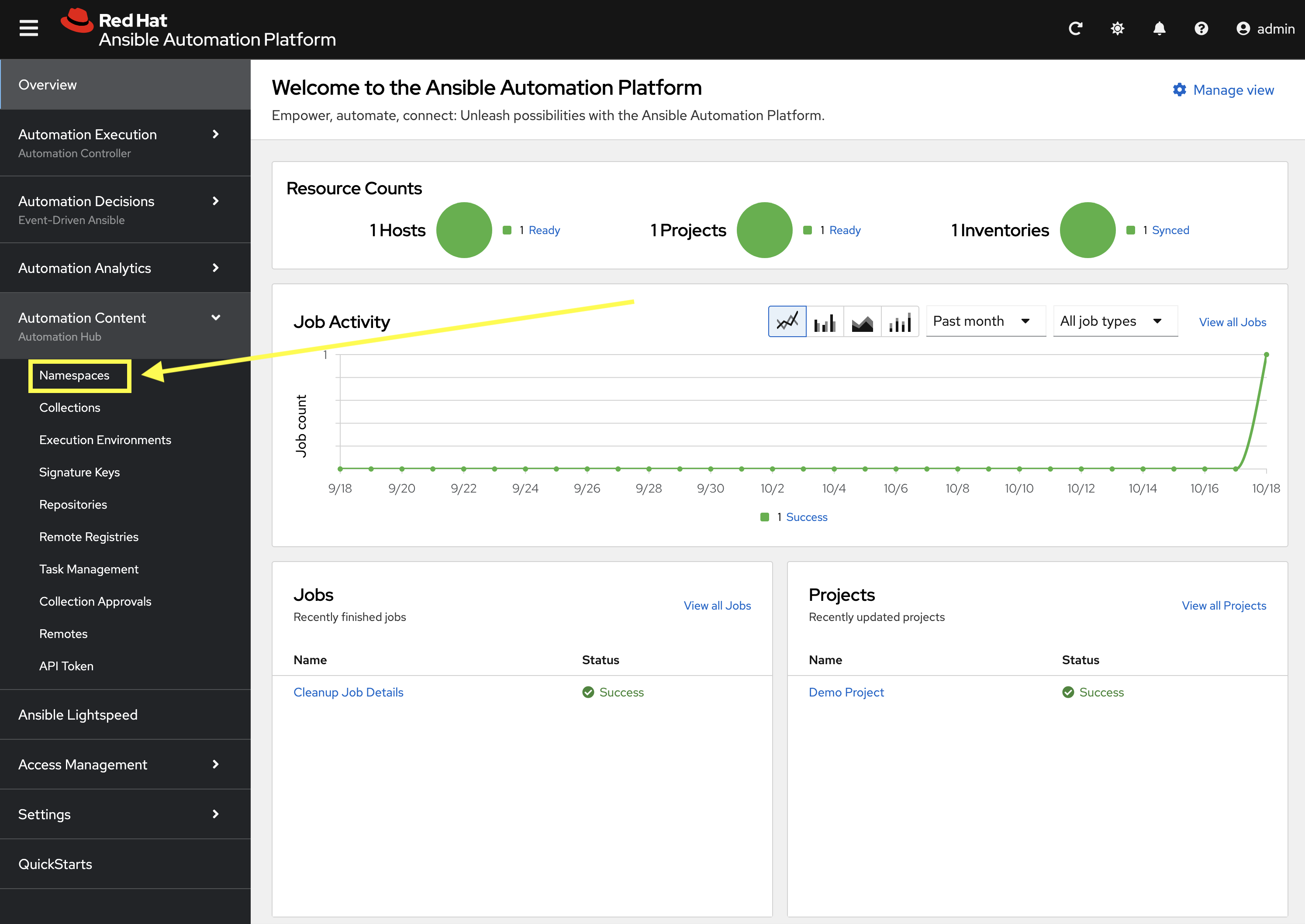
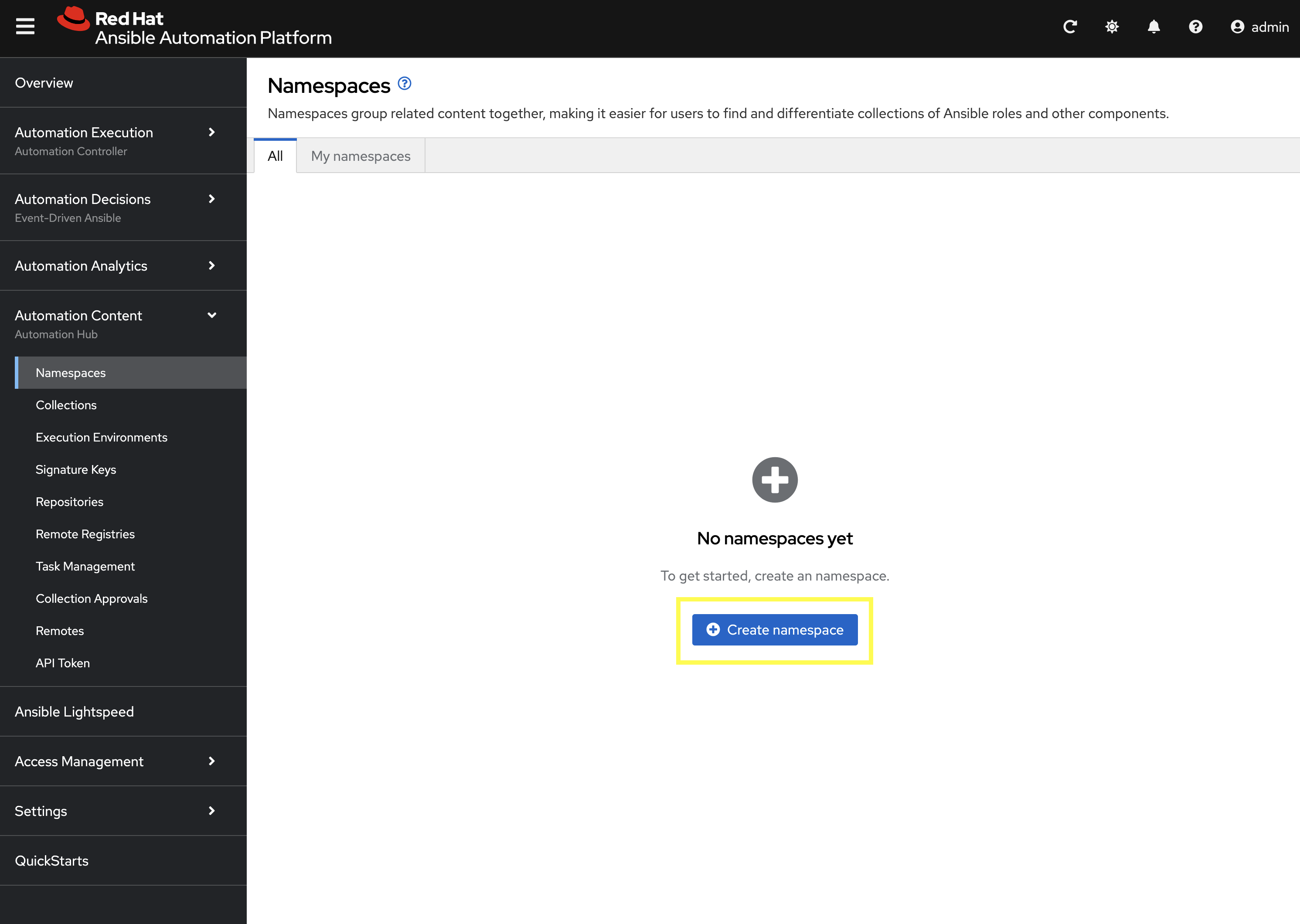
From the navigation menu on the left, expand Automation Content and click on Namespaces.
-
Click on the Create Namespace button.
-
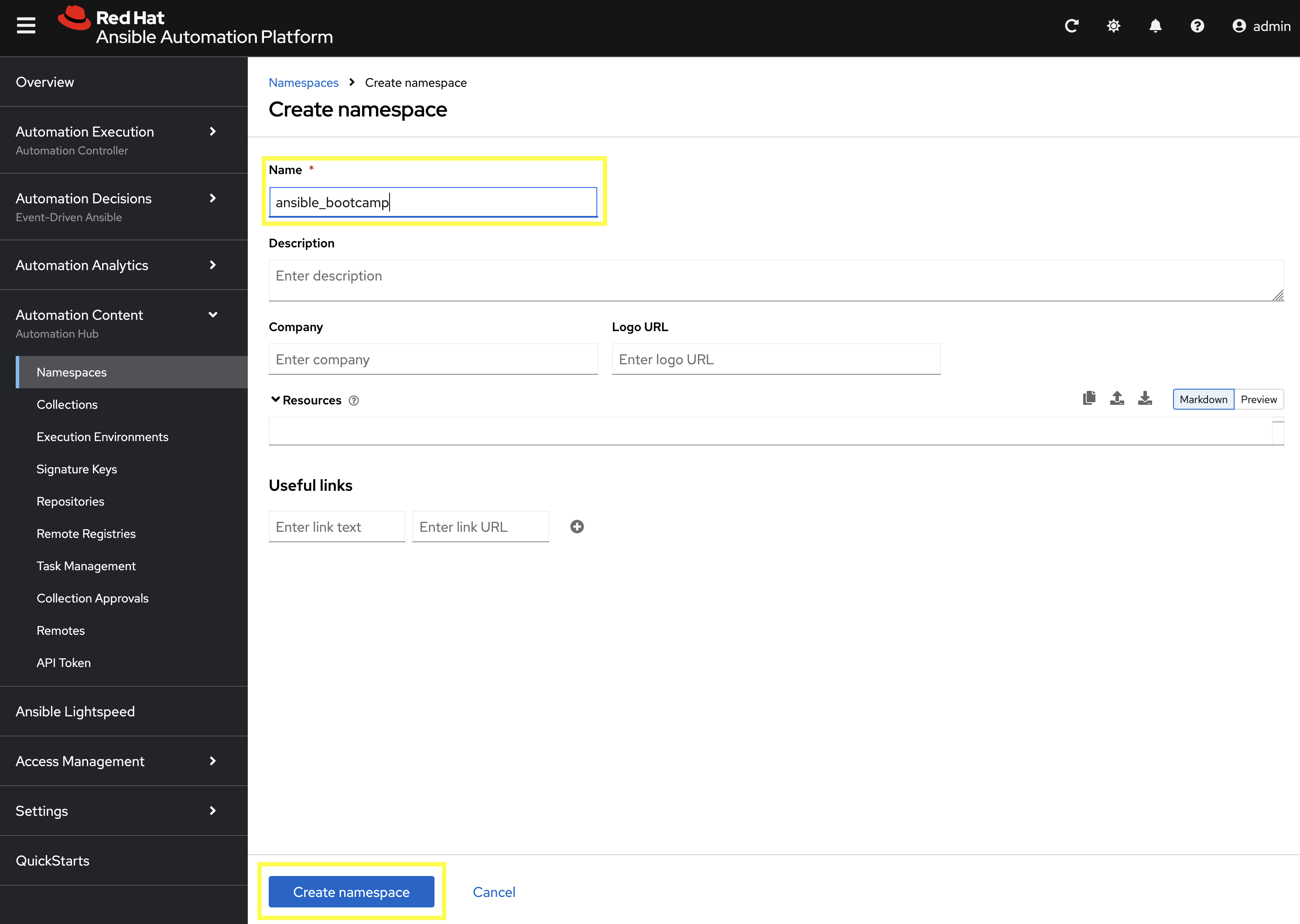
Enter
ansible_bootcampfor the name. The rest of the values can be left blank -
Click Create Namespace to create the namespace.
3.3: Build and Publish the Collection
Now that a namespace exists, we can build and publish our collection to PAH.
# Build your custom collection
ansible-galaxy collection build

# Publish the collection to PAH
ansible-galaxy collection publish -s {aap_controller_web_url}/api/galaxy/ ansible_bootcamp-my_collection-1.0.0.tar.gz --token $PAH_API_TOKEN| You can safely ignore any warnings that may be emitted during the publishing process. |
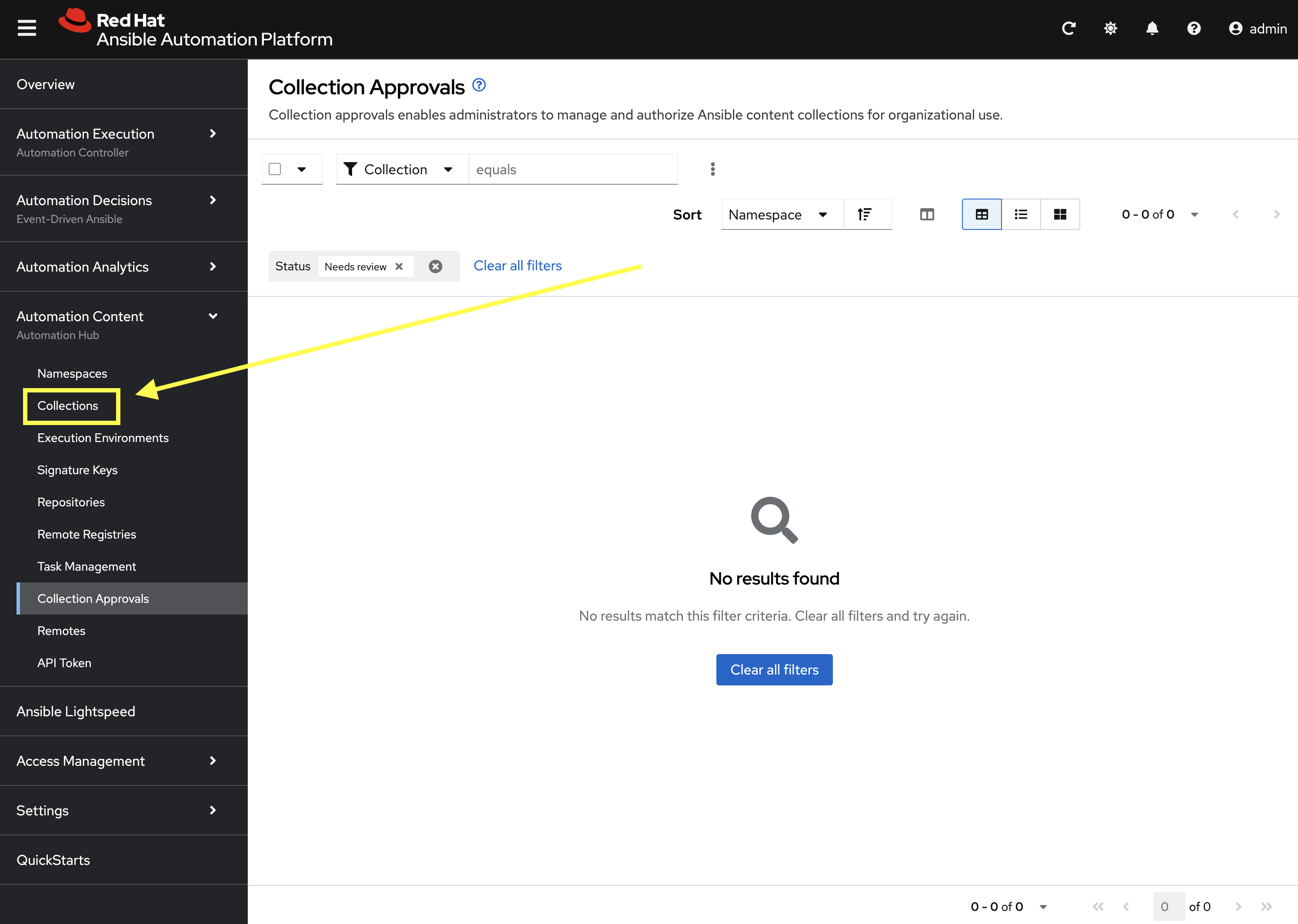
Once your collection has been published, it must be approved before it is available for use.
-
Launch the Private Automation Hub web interface and login using the credentials from the Environment Details page.
-
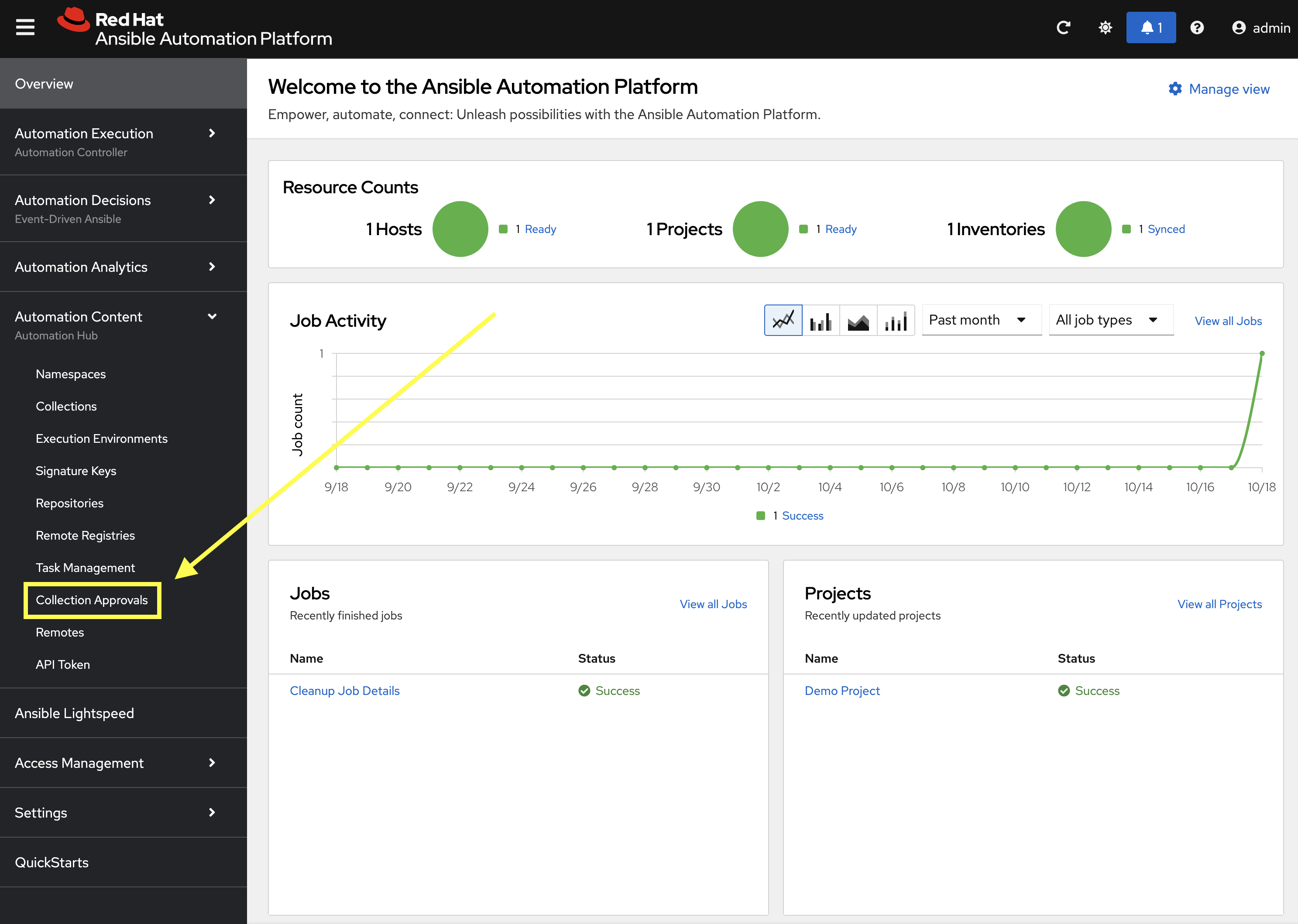
From the navigation menu on the left, expand Automation Content and click on Collection Approvals.
-
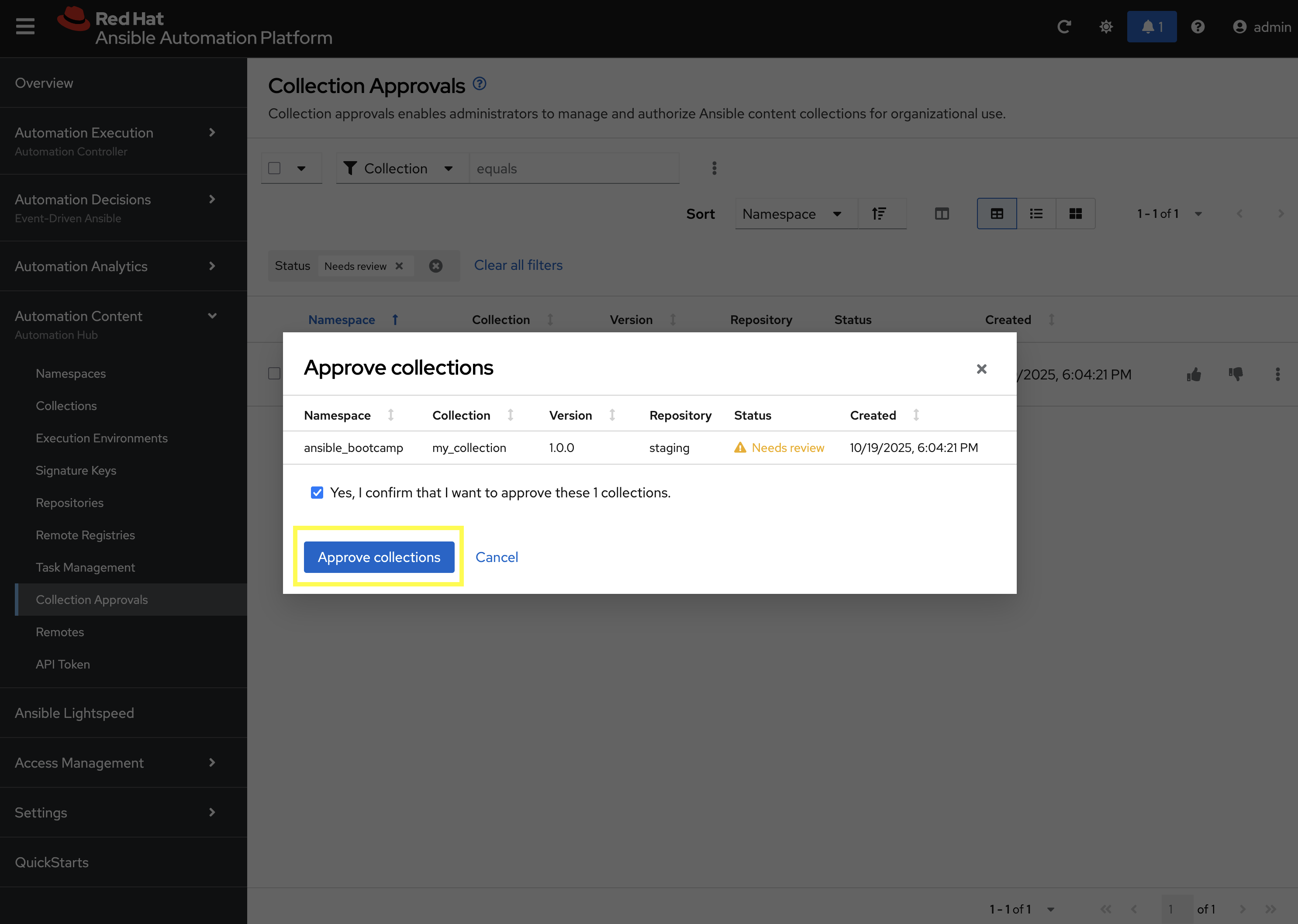
The
ansible_bootcamp.my_collectionshould be listed as pending approval. Click the Thumbs Up icon to approve and sign the collection.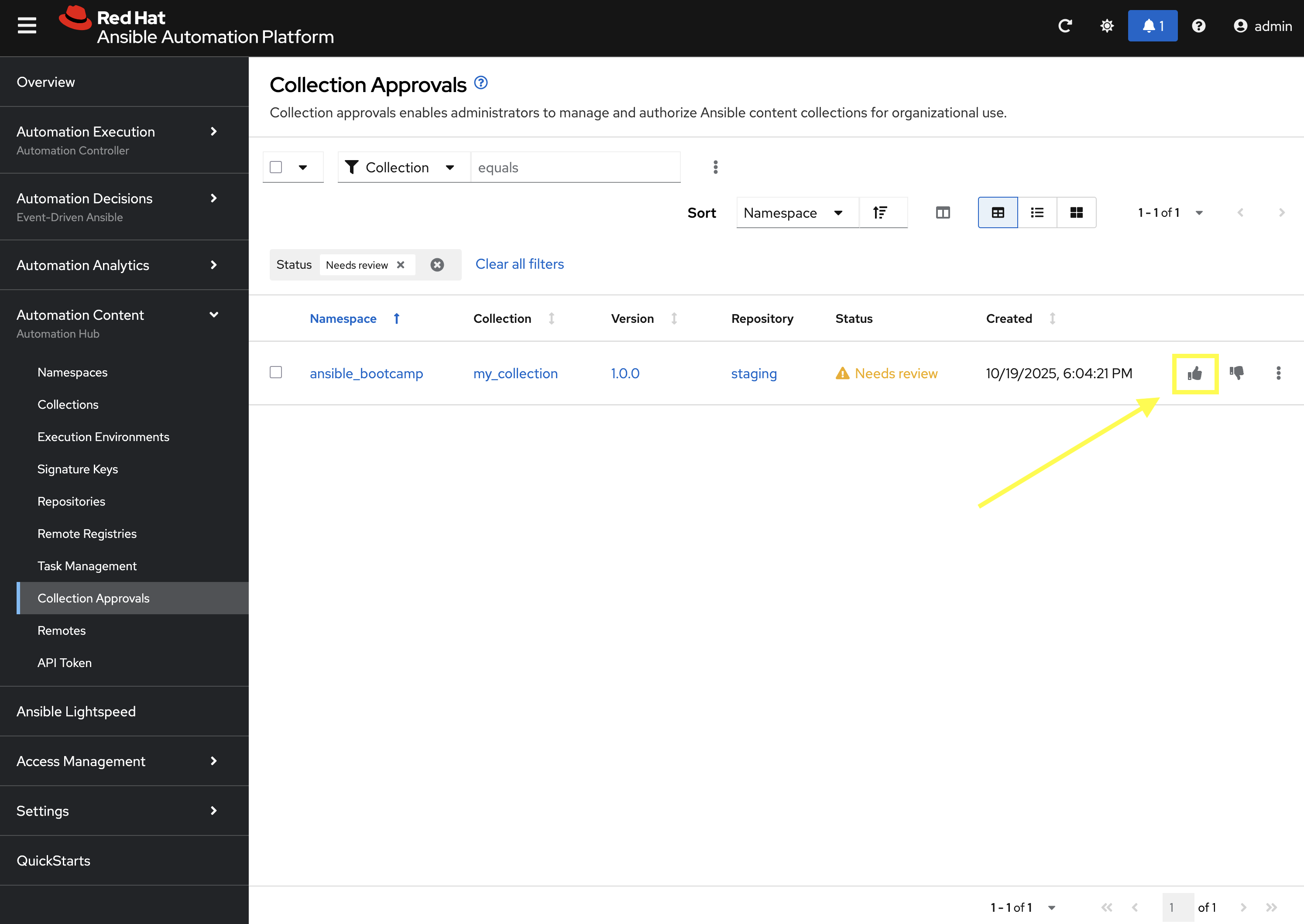
-
Select the Yes, I confirm that I want to approve these 1 collections. checkbox and click Approve collections button.
-
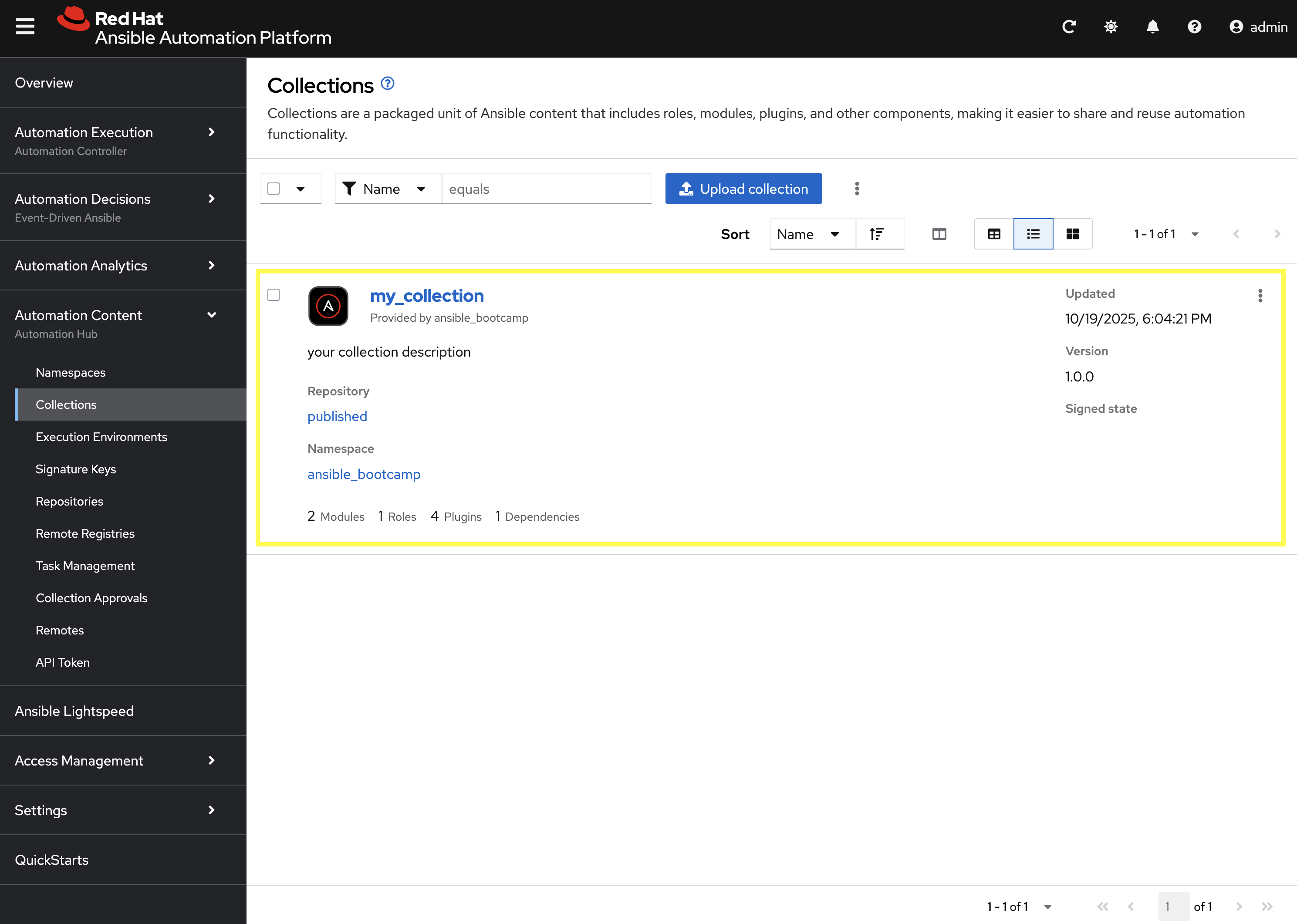
Navigate to the Collections page in PAH to verify that your collection is published and available.
-
You should see your
ansible_bootcamp.my_collectionlisted and available for use.
4: Syncing a Base EE from the Red Hat Registry
Before producing our own Execution Environment (EE) in subsequent steps, we’ll configure PAH to pull in a certified base image from Red Hat. Since AAP images within the Red Hat Container Registry are private, we need to configure a credential within PATH to allow for the retrieval of images.
-
Launch the Private Automation Hub web interface and login using the credentials from the Environment Details page.
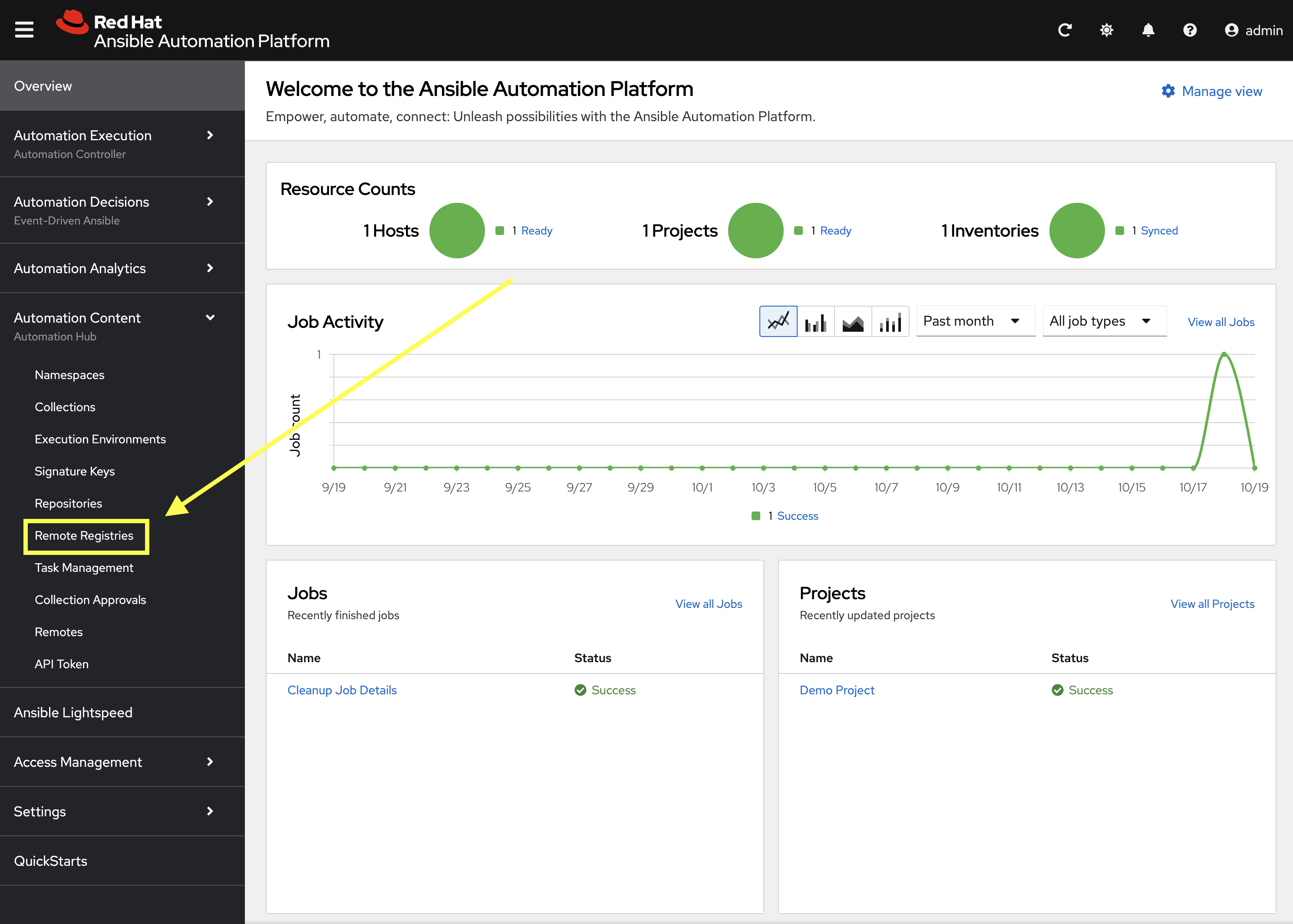
-
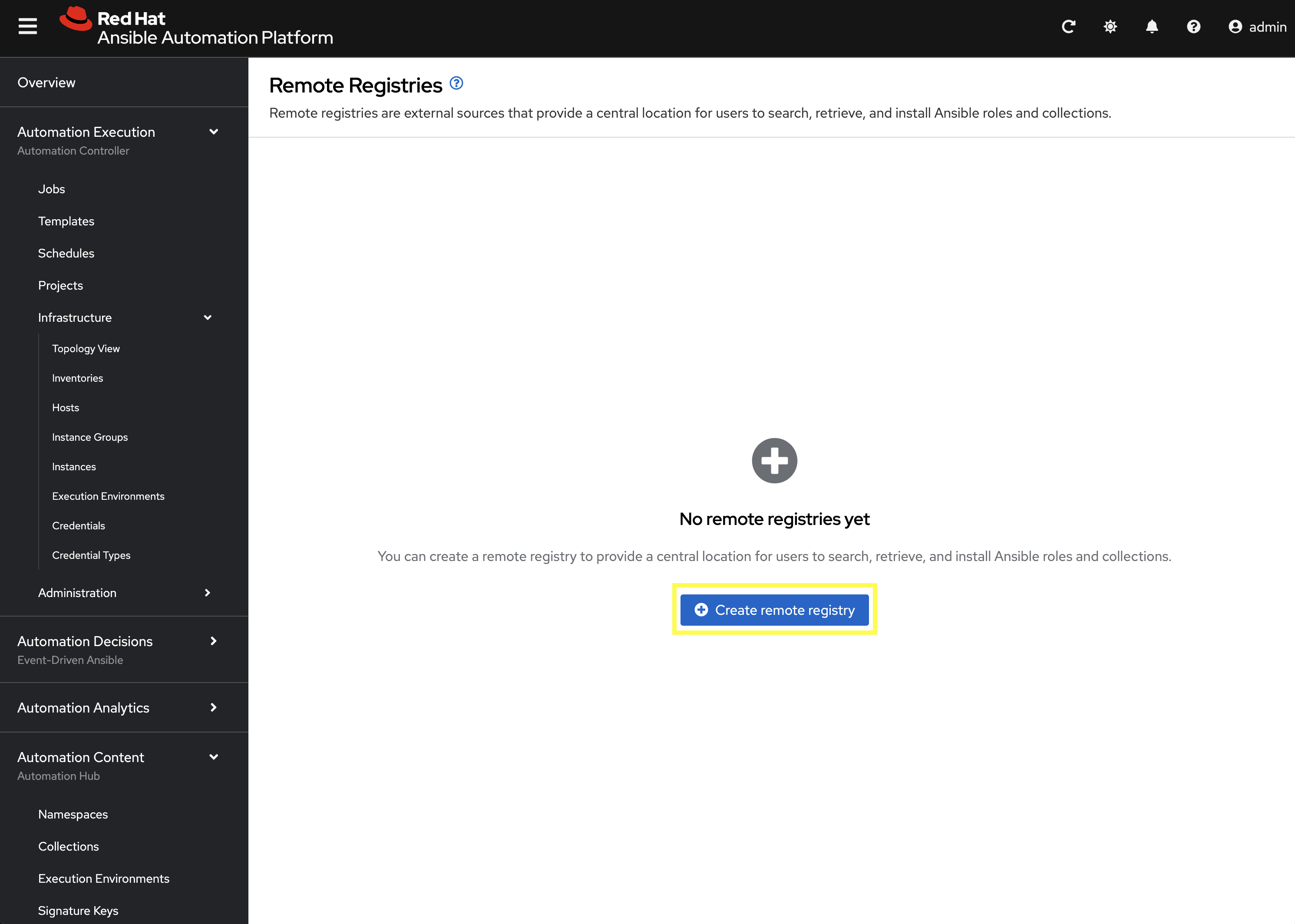
From the navigation menu on the left, expand Automation Content and click on Remote Registries.
-
Click the Create remote registry button
-
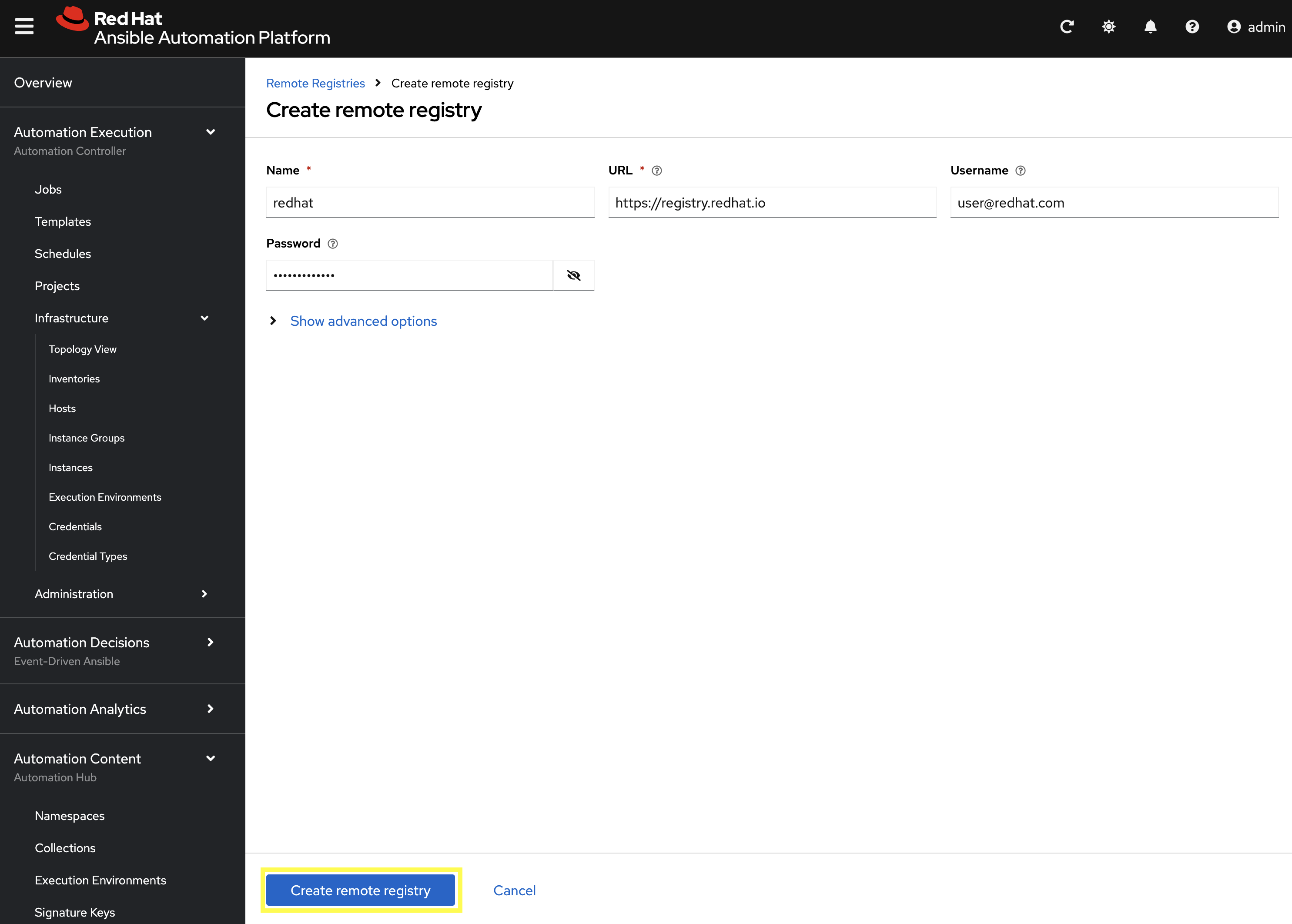
Enter the following details on the Create Remote Registry page:
-
Name:
redhat -
Username:
YOUR_REDHAT_USERNAME -
Password:
YOUR_REDHAT_PASSWORD -
Click Create remote registry to add the new registry.
You can Create Service Account Credentials in the Red Hat Customer Portal to simplify the management and access to the Red Hat Container Catalog.
-
Now that details related to the Red Hat Container Registry have been added, configure PAH to sync the ee-minimal-rhel9 image
-
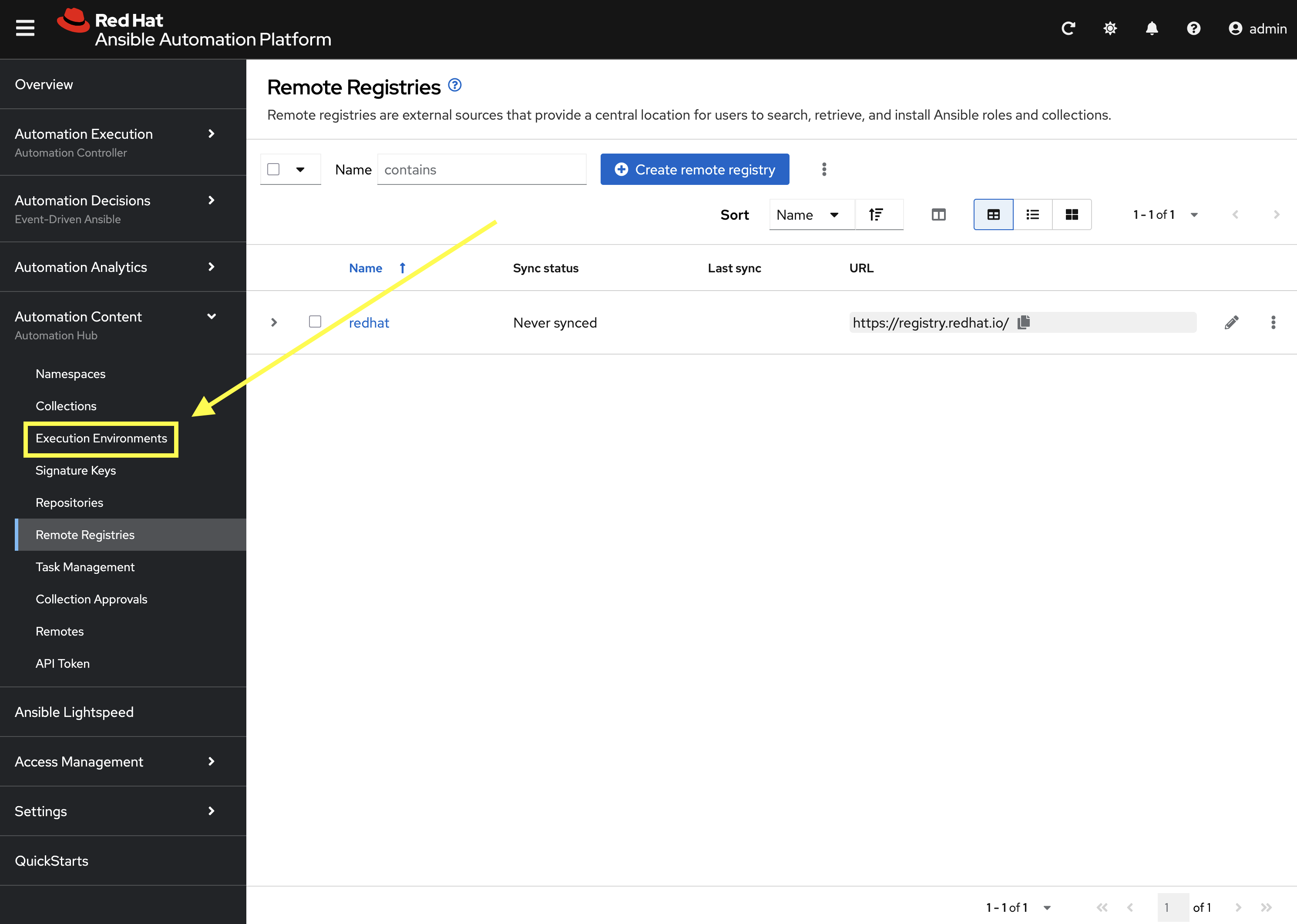
From the navigation menu on the left, expand Automation Content and click on Execution Environments.
-
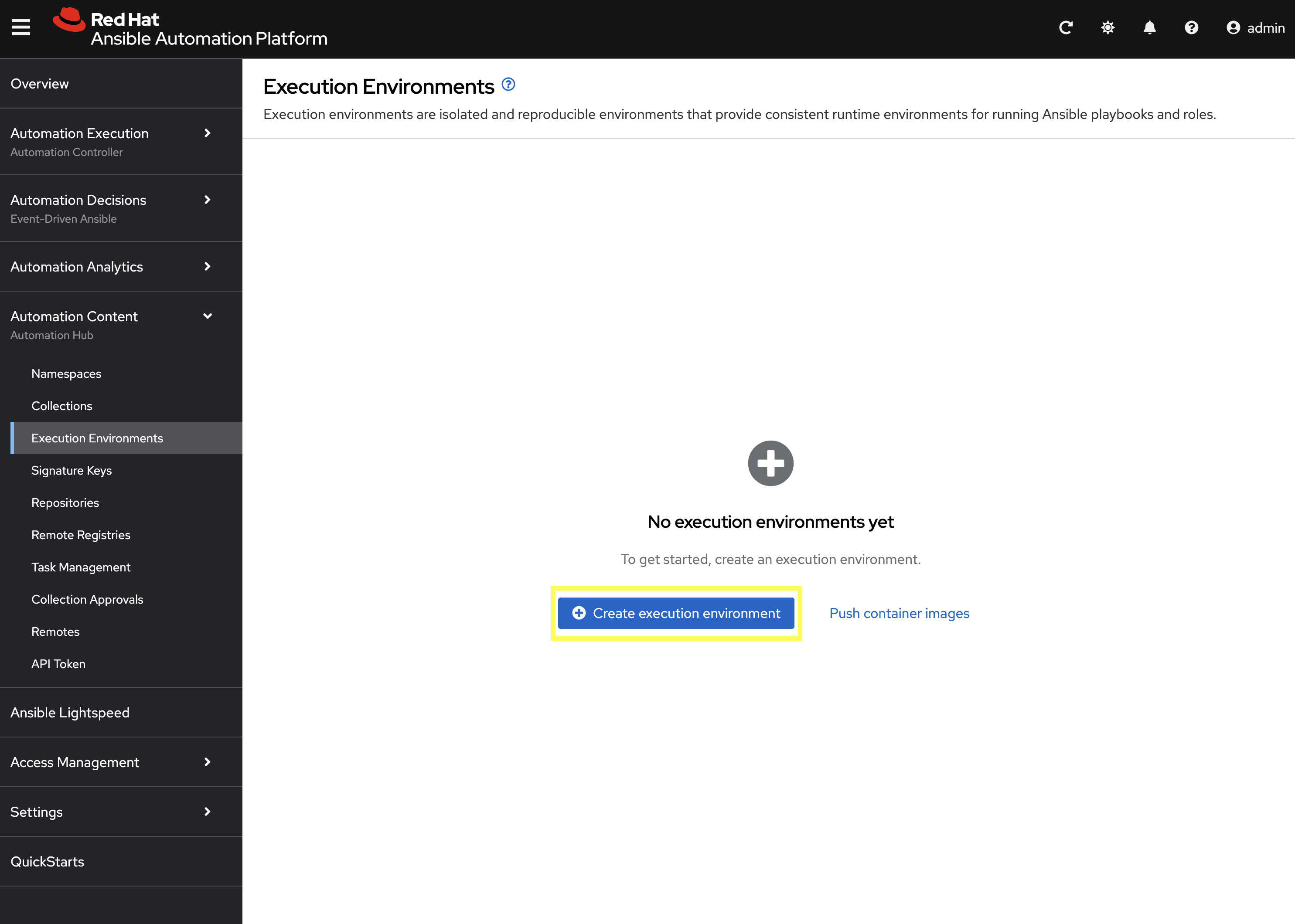
Click the Create execution environment button.
-
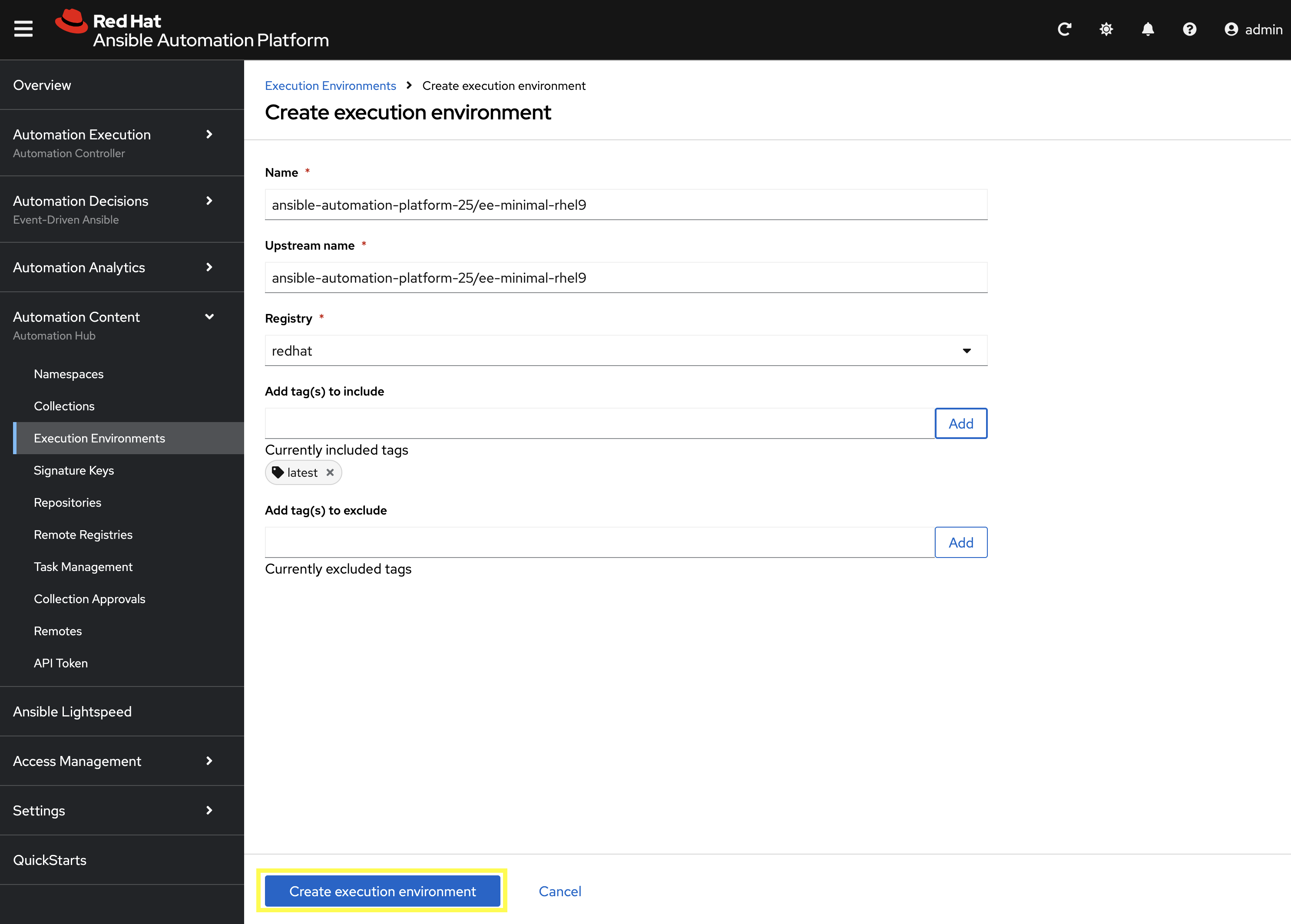
Enter the following details on the Create Execution Environment page:
-
Name:
ansible-automation-platform-25/ee-minimal-rhel9 -
Upstream Name:
ansible-automation-platform-25/ee-minimal-rhel9 -
Remote Registry:
redhat -
To reduce the sync time and storage requirements, enter
latestin the Add tag(s) to include field and click Add -
Click the Create execution environment button to create the new EE.
-
Synchronize the Execution Environment into PAH from the Red Hat Container Registry.
-
Next to the
ansible-automation-platform-25/ee-minimal-rhel9Execution Environment, click the kebab menu (three vertical dots) on the right hand side of the entry and select Sync execution environment.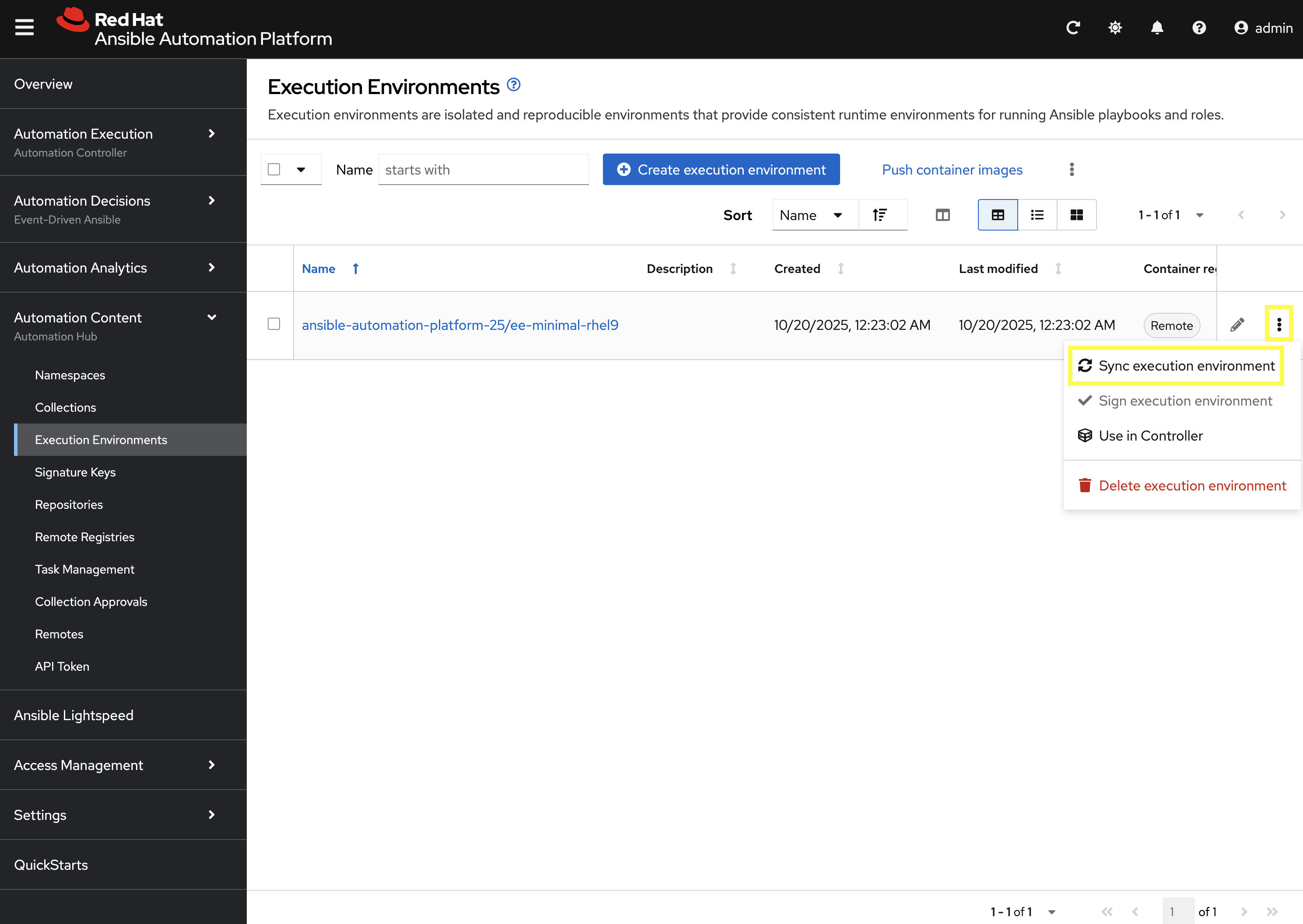
-
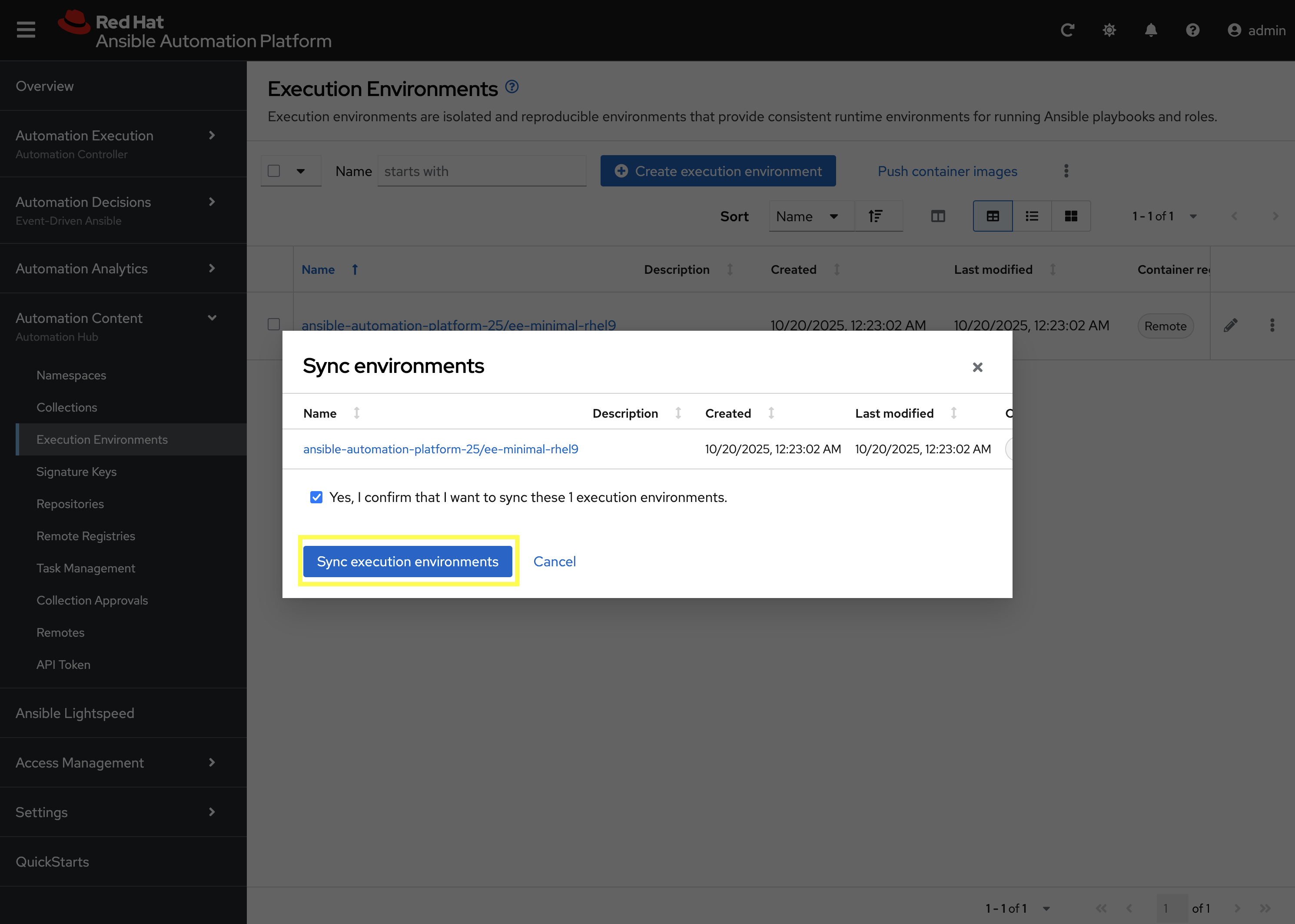
Click the checkbox next to the Yes, I confirm I want to sync these 1 execution environments. the box to confirm and click Sync execution environment.
-
Click the Sync Execution Environments button to start the synchronization process.
After the sync is complete, the ee-minimal-rhel9 image will be available in your Private Automation Hub instance. Feel free to explore the details of the newly synchronized Execution Environment as you see fit.
5: Push Collection to Repository
After we’ve published our collection to Private Automation Hub, the next step is to save our work into your lab’s Gitea instance.
5.1: Create Gitea Repository
Create a new repository in your Gitea instance to hold the collection code using the following steps:
-
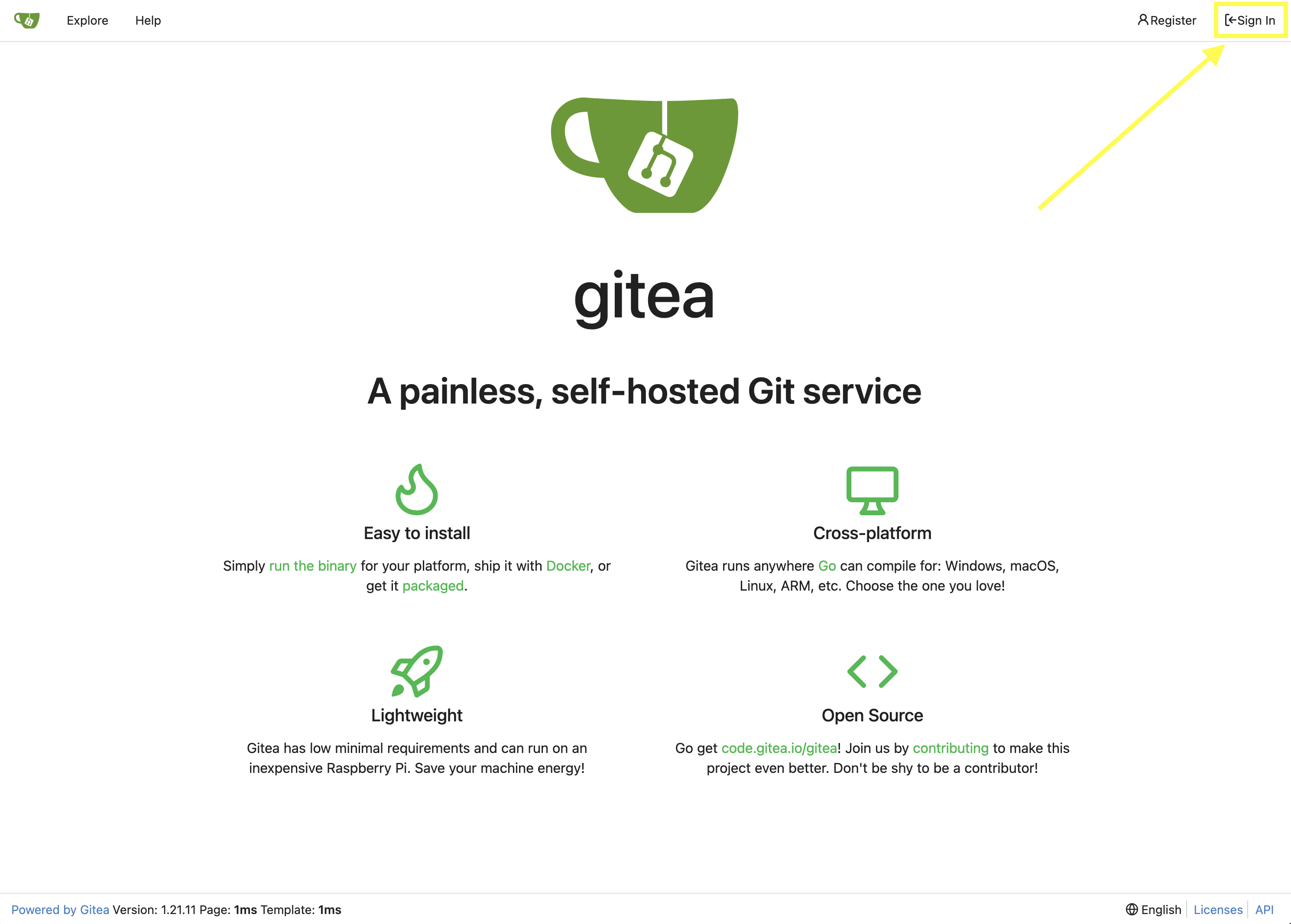
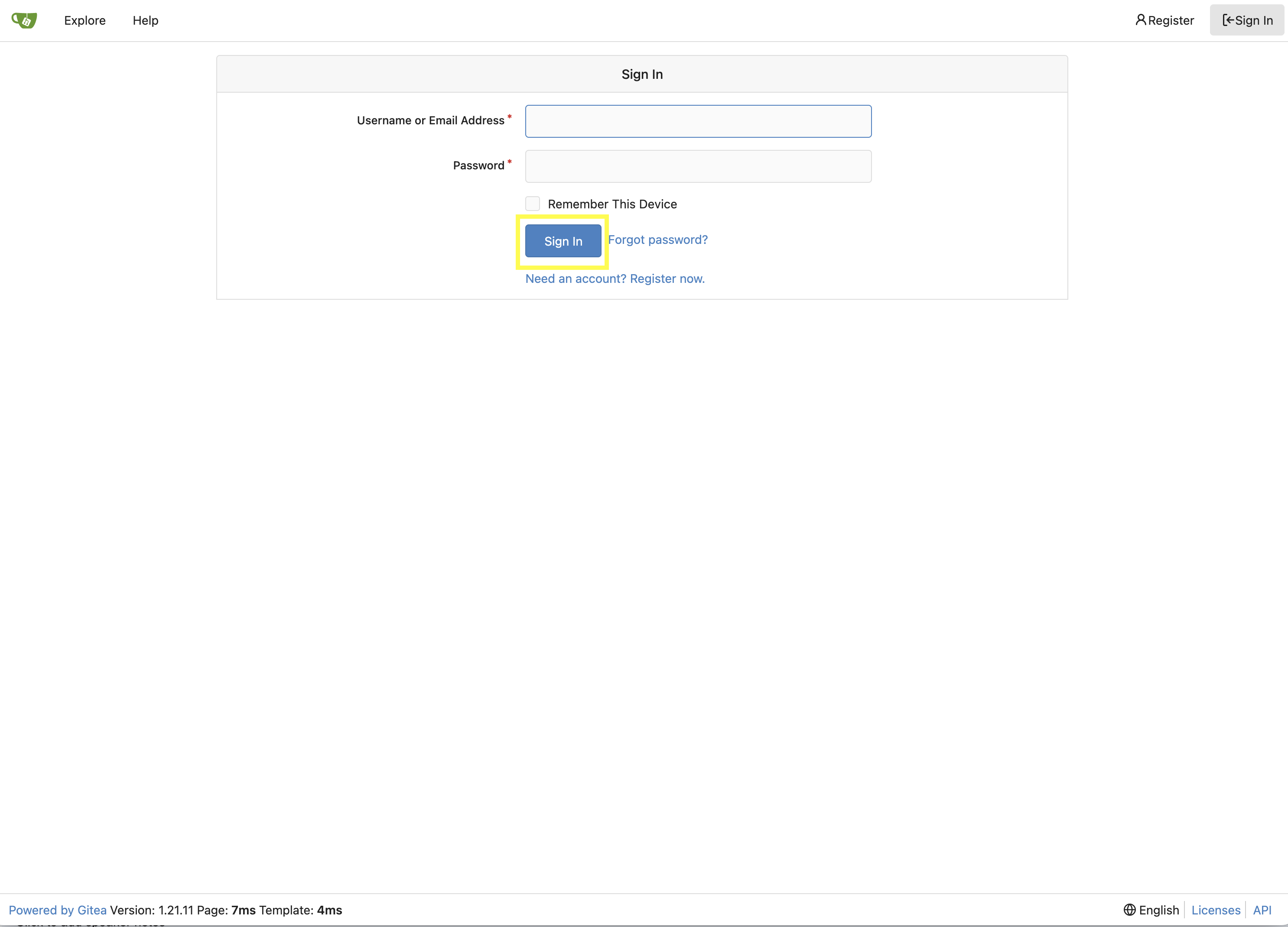
Navigate to your Gitea instance and click the Sign In button on the upper right hand corner
-
Enter the username and password using the credentials provided from the Environment Details page and click the Sign In button
-
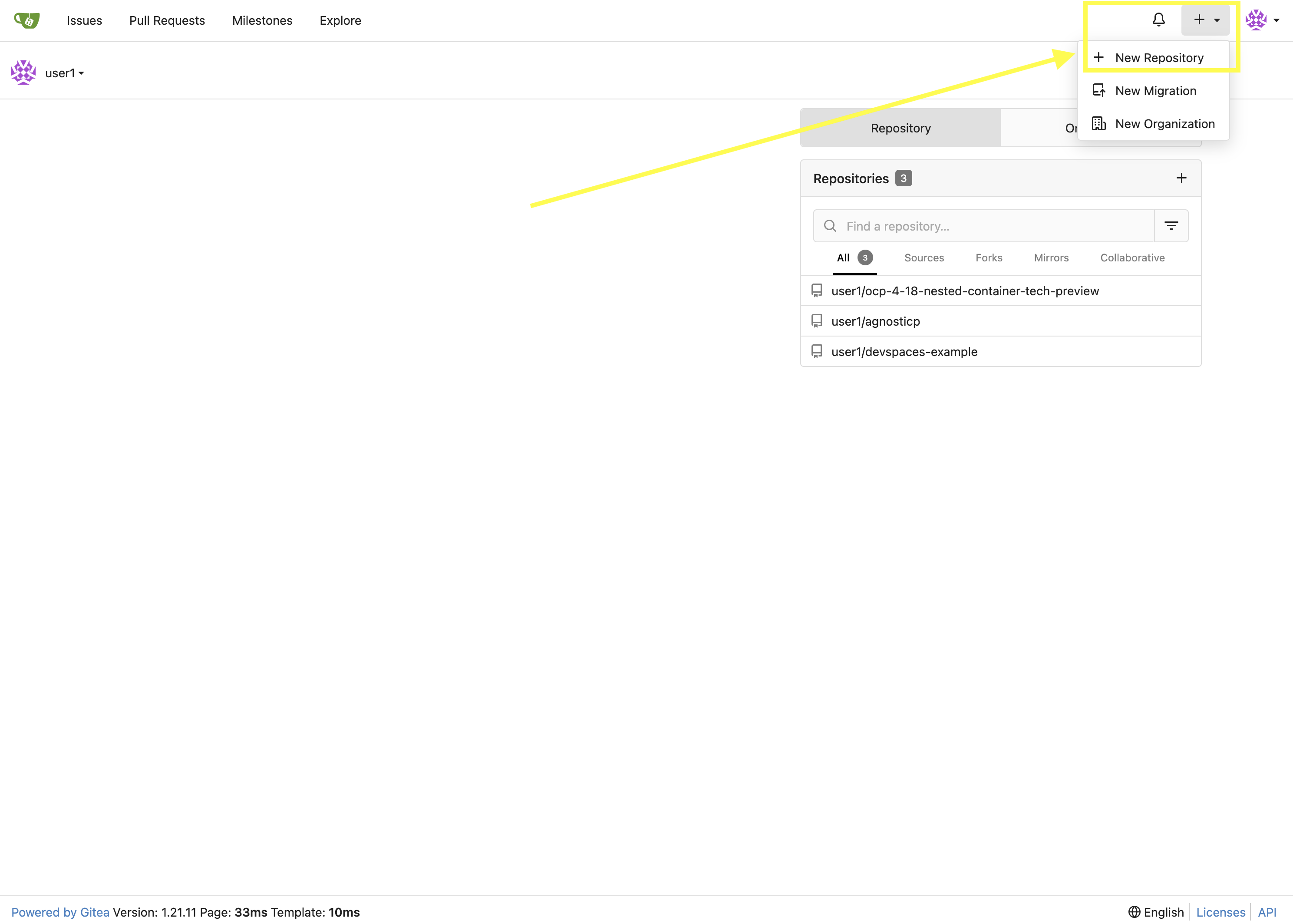
Once authenticated, in the top left of the web interface, click on the + symbol and select New Repository.
-
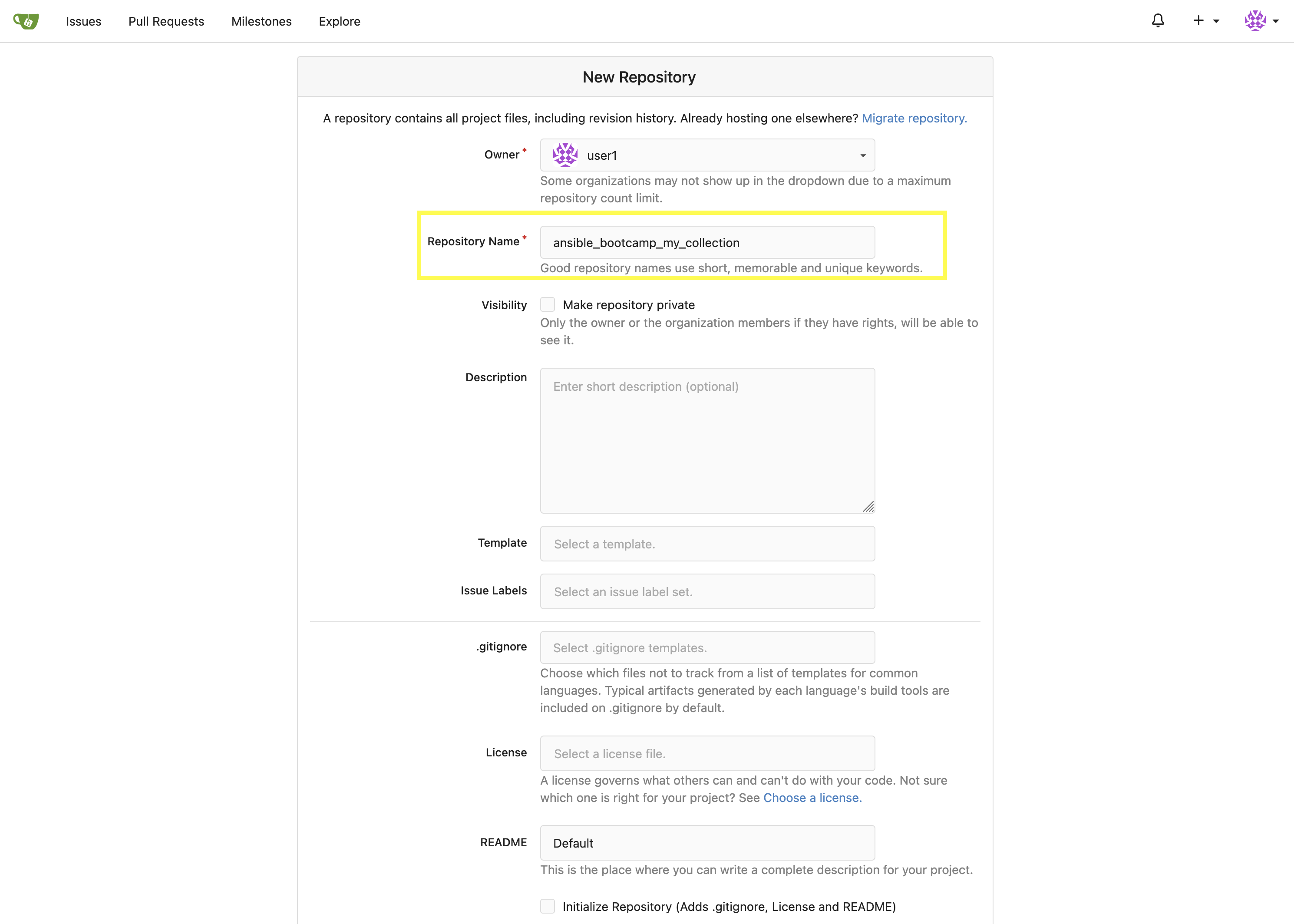
On the New Repository page, enter 'ansible_bootcamp_my_collection' in the Repository Name field.
-
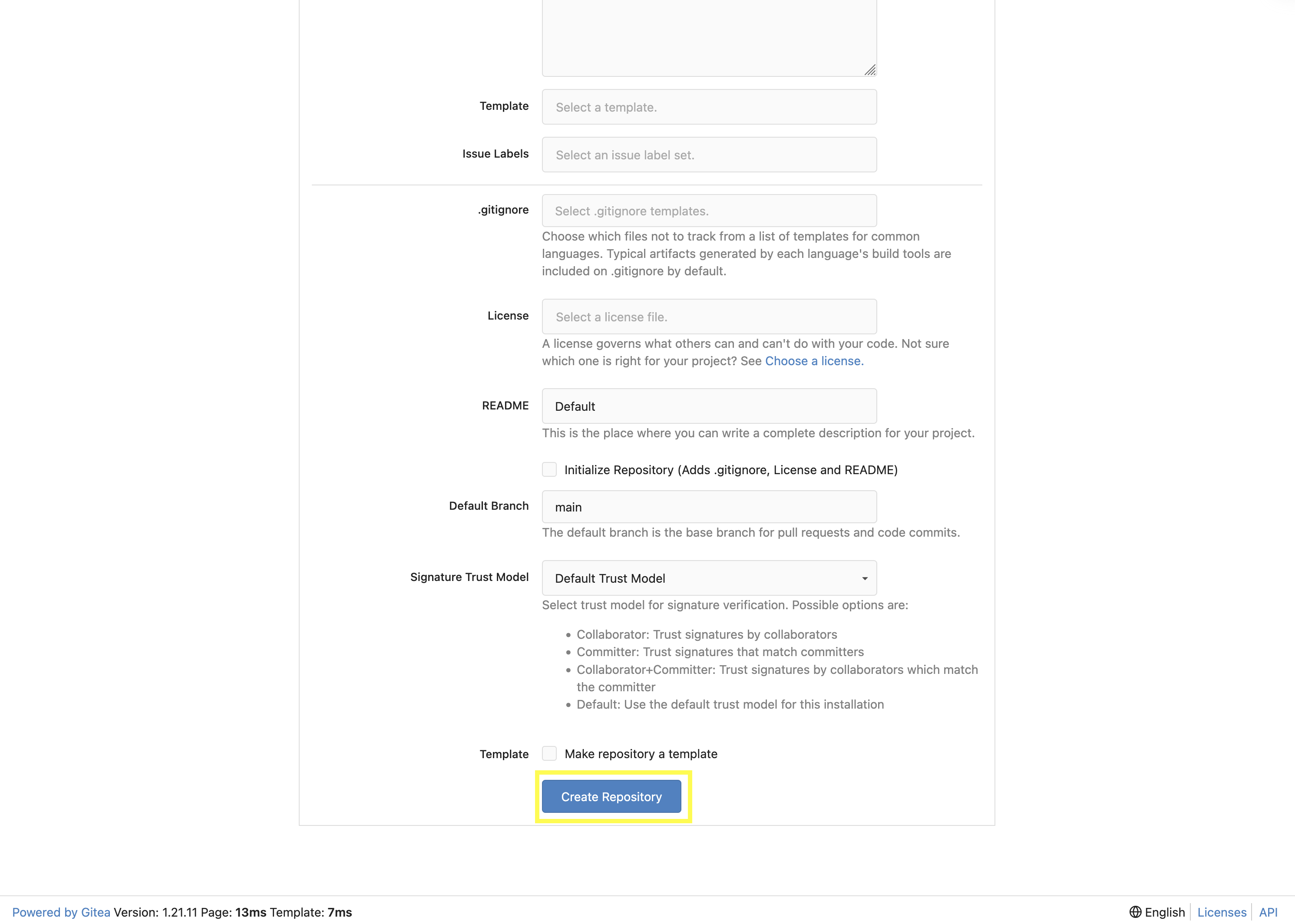
Leave everything else as default and click on the button at the bottom, Create Repository.
5.2: Append to the .gitignore file
Back in your Dev Spaces instance, update the .gitignore file within the my_pah_project directory containing the my_collection collection and append the following lines to exclude files that should not be committed to the repository.
context/
.password
ansible.cfg
.vscode/
*.tar.gz
*.json
5.3: Push collection to new repository
After an empty repository is created on your Gitea instance, the next step is to push the collection to the repository.
-
Navigate to the ansible_bootcamp_my_collection repository.
-
In the section Clone this repository, click the Copy URL icon on the far right to copy Gitea repository URL for the HTTPS protocol option.
Now, from within the the terminal of your Dev Spaces instance, within the 'my_pah_project' directory, execute the following commands to initialize a new Git repository and push the content to the Gitea repository.
git init
git checkout -b main
git add --all
git commit -m "Uploading collection on initial commit"
git remote add origin {gitea_console_url}/{gitea_user}/ansible_bootcamp_my_collection.git
git push -u origin main
Since the repository requires authentication, you will be prompted to enter your Gitea username and password at the top of the Dev Spaces window.

Once the credentials have been entered, the push operation will proceed in your terminal with a result similar to the following:
Enumerating objects: 83, done.
Counting objects: 100% (83/83), done.
Delta compression using up to 16 threads
Compressing objects: 100% (60/60), done.
Writing objects: 100% (83/83), 31.42 KiB | 3.14 MiB/s, done.
Total 83 (delta 0), reused 0 (delta 0), pack-reused 0 (from 0)
remote: . Processing 1 references
remote: Processed 1 references in total
To {gitea_console_url}/{gitea_user}/ansible_bootcamp_my_collection.git
 * [new branch]      main -> main
branch 'main' set up to track 'origin/main'.
Refresh the ansible_bootcamp_my_collection page within the Gitea UI to confirm that the collection has been published successfully.
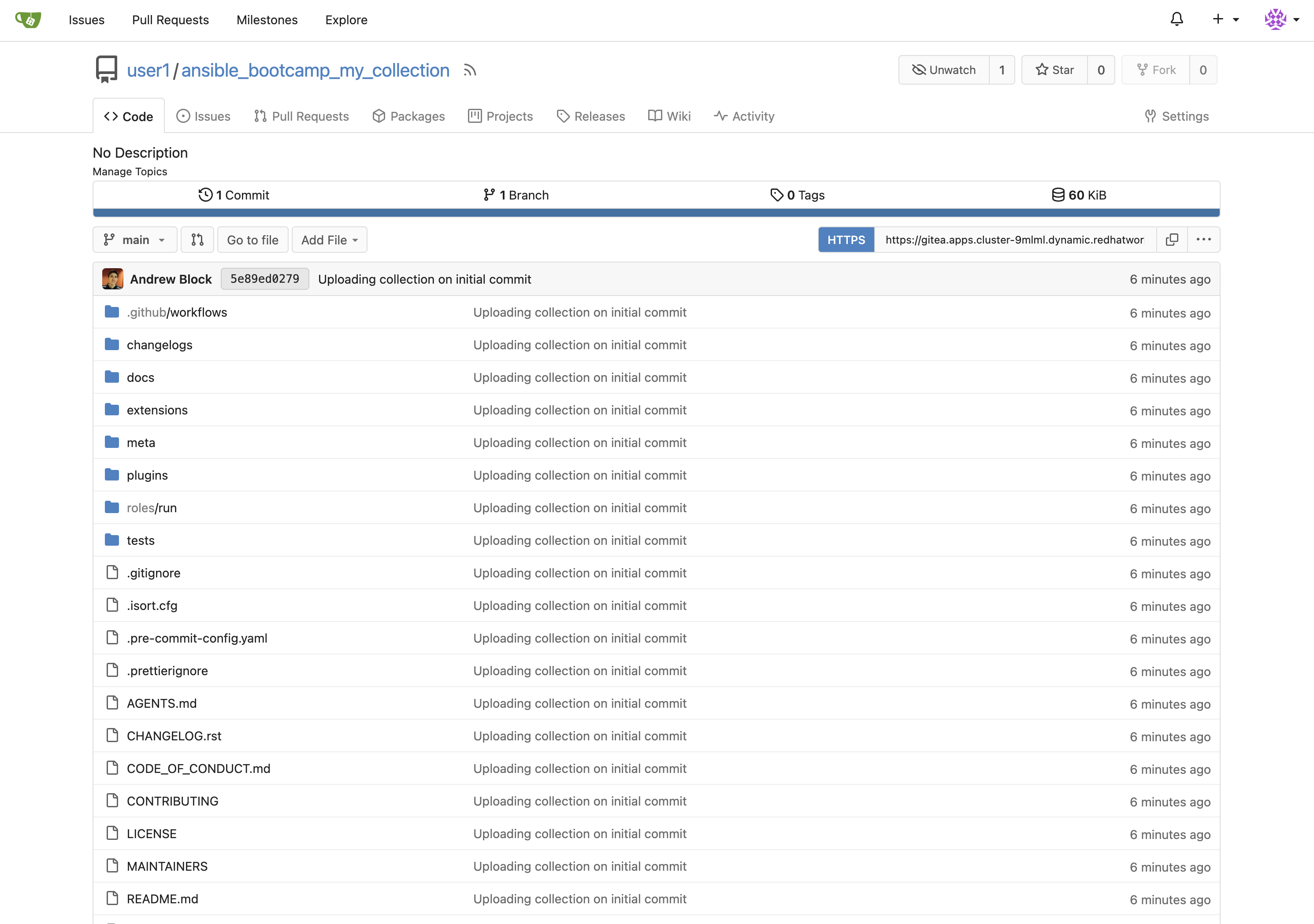
The repository will be referenced later in the Ansible Bootcamp Lab: Creating a CI/CD Pipeline.
6: Building a Custom Execution Environment
Now, we’ll define and build a custom Execution Environment (EE) that uses our synced minimal image and our custom collection.
6.1: Define the Execution Environment
Create a file named execution-environment.yml at the root of the my_pah_project directory with the following content.
---
version: 3

images:
  base_image:
    name: aap-aap.{openshift_cluster_ingress_domain}/ansible-automation-platform-25/ee-minimal-rhel9:latest

dependencies:
  ansible_core:
    package_pip: ansible-core==2.16.14
  galaxy:
    collections:
      - name: ansible_bootcamp.my_collection
        version: 1.0.0
options:
  package_manager_path: /usr/bin/microdnf

additional_build_steps:
  prepend_galaxy:
    - ARG TOKEN
    - ENV ANSIBLE_GALAXY_SERVER_LIST='published,certified,validated,community'
    - ENV ANSIBLE_GALAXY_SERVER_CERTIFIED_URL='{aap_controller_web_url}/pulp_ansible/galaxy/rh-certified/'
    - ENV ANSIBLE_GALAXY_SERVER_CERTIFIED_TOKEN=$TOKEN
    - ENV ANSIBLE_GALAXY_SERVER_VALIDATED_URL='{aap_controller_web_url}/pulp_ansible/galaxy/validated/'
    - ENV ANSIBLE_GALAXY_SERVER_VALIDATED_TOKEN=$TOKEN
    - ENV ANSIBLE_GALAXY_SERVER_COMMUNITY_URL='{aap_controller_web_url}/pulp_ansible/galaxy/community/'
    - ENV ANSIBLE_GALAXY_SERVER_COMMUNITY_TOKEN=$TOKEN
    - ENV ANSIBLE_GALAXY_SERVER_PUBLISHED_URL='{aap_controller_web_url}/pulp_ansible/galaxy/published/'
    - ENV ANSIBLE_GALAXY_SERVER_PUBLISHED_TOKEN=$TOKEN
6.2: Build and Publish the Execution Environment
Login to your PAH container registry, build the custom Execution Environment, and push the resulting image to your PAH instance using the following commands:
# Log in to your PAH container registry with your AAP user credentials
podman login aap-aap.{openshift_cluster_ingress_domain}

# Build the EE. It will pull the base from PAH, then add our content.
ansible-builder build --tag my-pah-ee:1.0 --build-arg TOKEN=$PAH_API_TOKEN

# Tag and push the image to your PAH registry
podman tag localhost/my-pah-ee:1.0 aap-aap.{openshift_cluster_ingress_domain}/my-pah-ee:1.0
podman push aap-aap.{openshift_cluster_ingress_domain}/my-pah-ee:1.0
The $PAH_API_TOKEN environment variable was set previously containing the value of the API Token from PAH. Set this variable once again if your terminal session has been restarted.
|
7: Adding a Custom Filter Plugin
Now that we have a working EE, let’s iterate by adding a custom Filter plugin to our collection.
7.1: Create the Custom Filter Plugin
Create the file at plugins/filter/cowsay_filter.py with the following content:
from __future__ import (absolute_import, division, print_function)
__metaclass__ = type

DOCUMENTATION = '''
    name: cowsay
    short_description: A filter to wrap text in a cowsay bubble.
    description:
        - This filter takes a string and returns it formatted by the cowsay library.
    requirements:
      - The `cowsay` python library must be installed.
'''

try:
    import cowsay
except ImportError:
    cowsay = None

def cowsay_filter(text):
    if not cowsay:
        raise AnsibleFilterError("The 'cowsay' Python library is not installed. Cannot use filter.")
    return cowsay.cow(text)

class FilterModule(object):
    def filters(self):
        return {
            'cowsay': cowsay_filter
        }
Step 7.2: Update the EE Definition for the Plugin Dependency
Our new plugin requires the cowsay Python library, and we need to ensure our EE is pulling the new version of our collection. Modify the execution-environment.yml to include both changes.
---
version: 3

images:
  base_image:
    name: aap-aap.{openshift_cluster_ingress_domain}/ansible-automation-platform-25/ee-minimal-rhel9:latest

dependencies:
  ansible_core:
    package_pip: ansible-core==2.16.14
  galaxy:
    collections:
      - name: ansible_bootcamp.my_collection
        version: 1.0.1
  python:
    - cowsay
options:
  package_manager_path: /usr/bin/microdnf

additional_build_steps:
  prepend_galaxy:
    - ARG TOKEN
    - ENV ANSIBLE_GALAXY_SERVER_LIST='published,certified,validated,community'
    - ENV ANSIBLE_GALAXY_SERVER_CERTIFIED_URL='{aap_controller_web_url}/pulp_ansible/galaxy/rh-certified/'
    - ENV ANSIBLE_GALAXY_SERVER_CERTIFIED_TOKEN=$TOKEN
    - ENV ANSIBLE_GALAXY_SERVER_VALIDATED_URL='{aap_controller_web_url}/pulp_ansible/galaxy/validated/'
    - ENV ANSIBLE_GALAXY_SERVER_VALIDATED_TOKEN=$TOKEN
    - ENV ANSIBLE_GALAXY_SERVER_COMMUNITY_URL='{aap_controller_web_url}/pulp_ansible/galaxy/community/'
    - ENV ANSIBLE_GALAXY_SERVER_COMMUNITY_TOKEN=$TOKEN
    - ENV ANSIBLE_GALAXY_SERVER_PUBLISHED_URL='{aap_controller_web_url}/pulp_ansible/galaxy/published/'
    - ENV ANSIBLE_GALAXY_SERVER_PUBLISHED_TOKEN=$TOKEN
7.3: Increment Version and Republish
Now, we publish a new version of the collection and a new version of the EE that includes the updated collection and dependency.
First, edit galaxy.yml and change the version from 1.0.0 to 1.0.1.
Then, run the following commands:
# Rebuild and republish the collection
ansible-galaxy collection build
ansible-galaxy collection publish -s {aap_controller_web_url}/api/galaxy/ ansible_bootcamp-my_collection-1.0.1.tar.gz --token $PAH_API_TOKEN| Make sure to Approve collection in the PAH web interface as described previously. |
Finally, build and push the new EE version:
# Rebuild and republish the EE with a new version tag
ansible-builder build --tag my-pah-ee:1.1 --build-arg TOKEN=$PAH_API_TOKEN
podman tag localhost/my-pah-ee:1.1 aap-aap.{openshift_cluster_ingress_domain}/my-pah-ee:1.1
podman push aap-aap.{openshift_cluster_ingress_domain}/my-pah-ee:1.1
8: Preparing the Project for Automation Controller
Now that both the collection and Execution Environment has been created and published to Private Automation hub, we’ll create a playbook to use the filter contained within the ansible_bootcamp.my_collection collection.
8.1: Create a Playbook
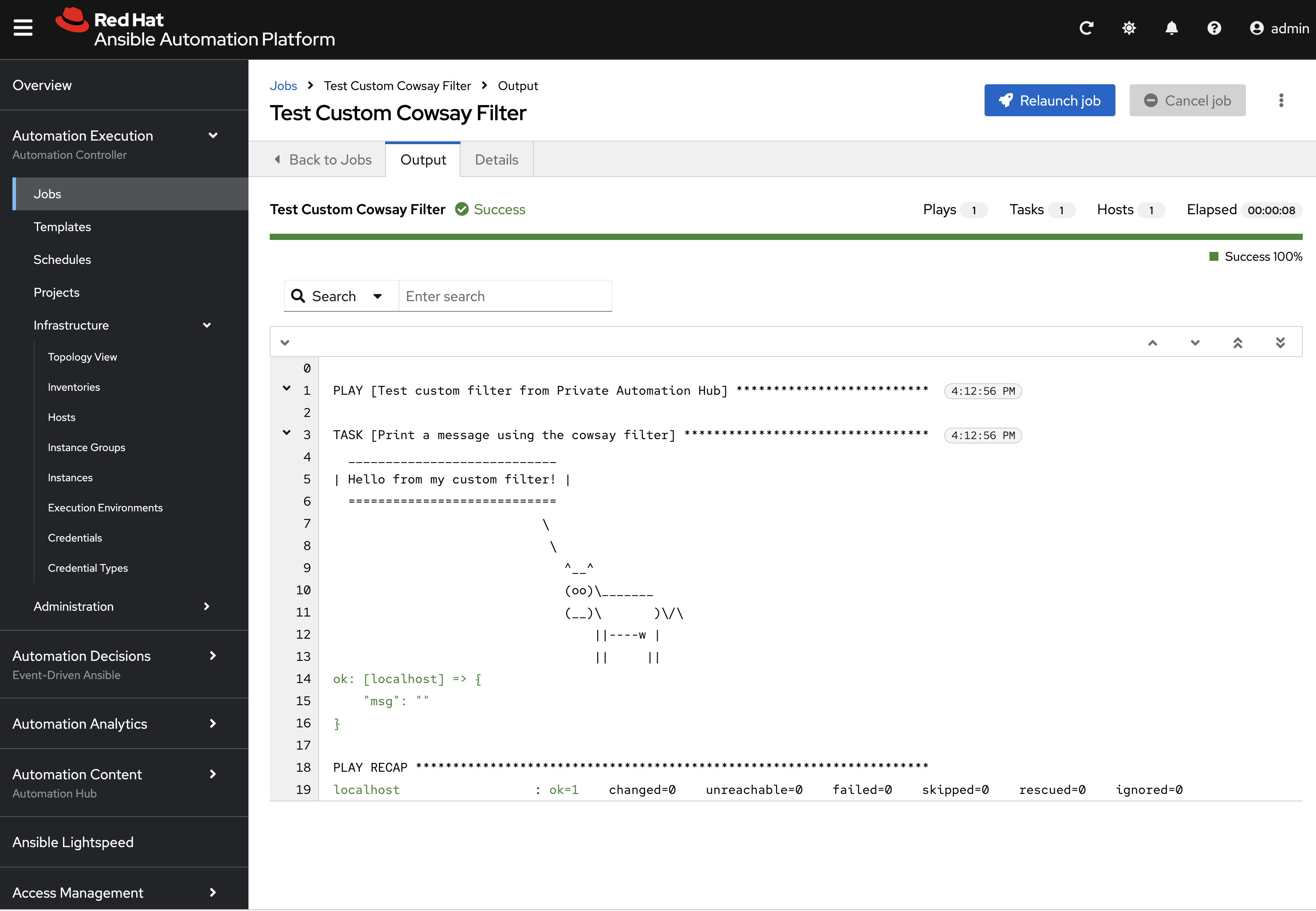
Create a new directory called playbooks within the my_pah_project directory and create a new playbook in a file named playbooks/test_pah_ee.yml. This playbook uses the debug module to print a message that has been formatted by our custom cowsay filter.
---
- name: Test custom filter from Private Automation Hub
  hosts: localhost
  connection: local
  gather_facts: false

  tasks:
    - name: Print a message using the cowsay filter
      ansible.builtin.debug:
        msg: "{{ 'Hello from my custom filter!' | ansible_bootcamp.my_collection.cowsay }}"
...9: Integrating with Automation Controller
Now, let’s configure Automation Controller to use our custom content.
9.1: Create a Credential for Hub Container Registry
First, create a new credential in Automation Controller to allow it to pull the custom Execution Environment from Private Automation Hub.
-
Launch the Automation Controller web interface and login using the credentials from the Environment Details page.
-
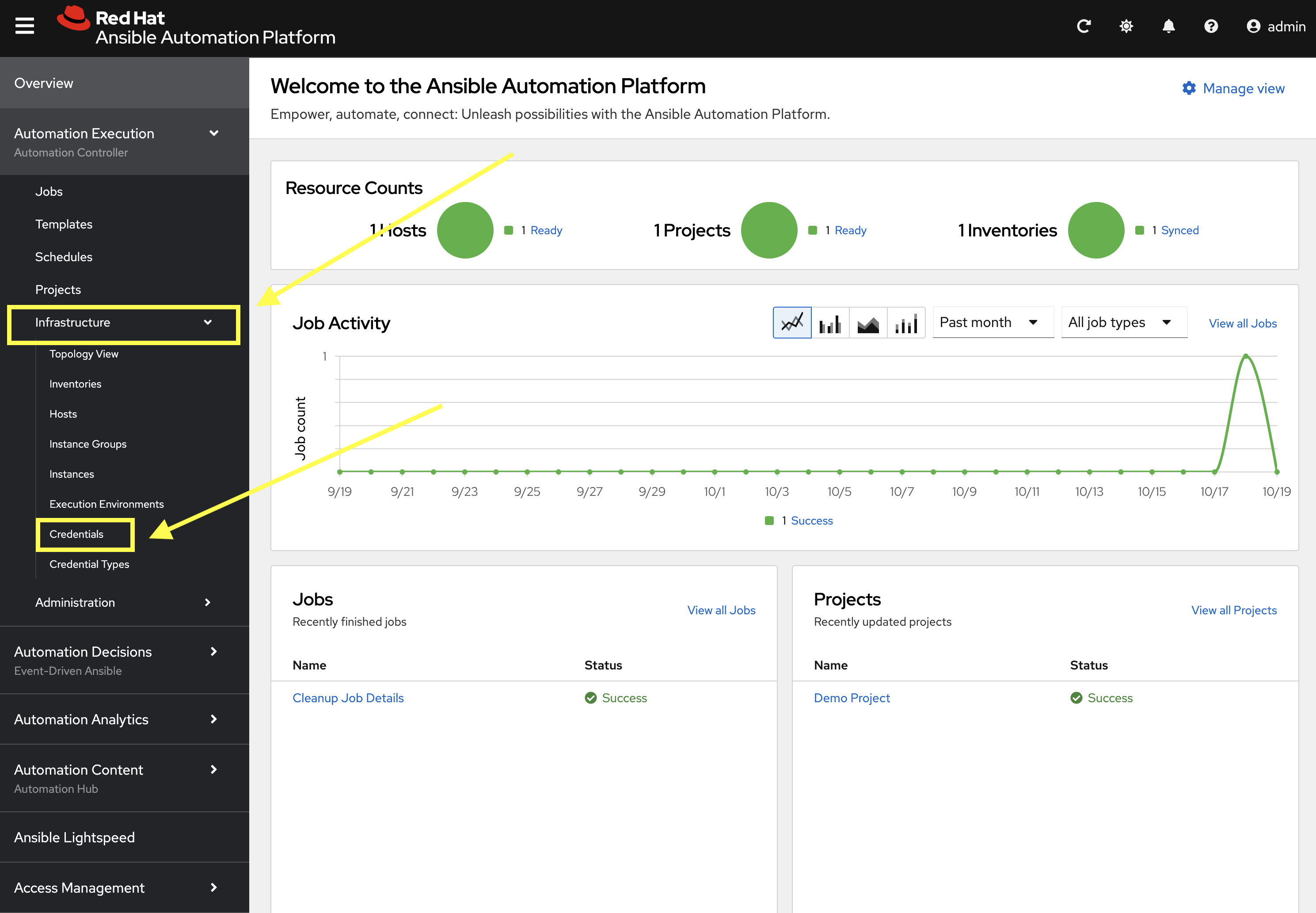
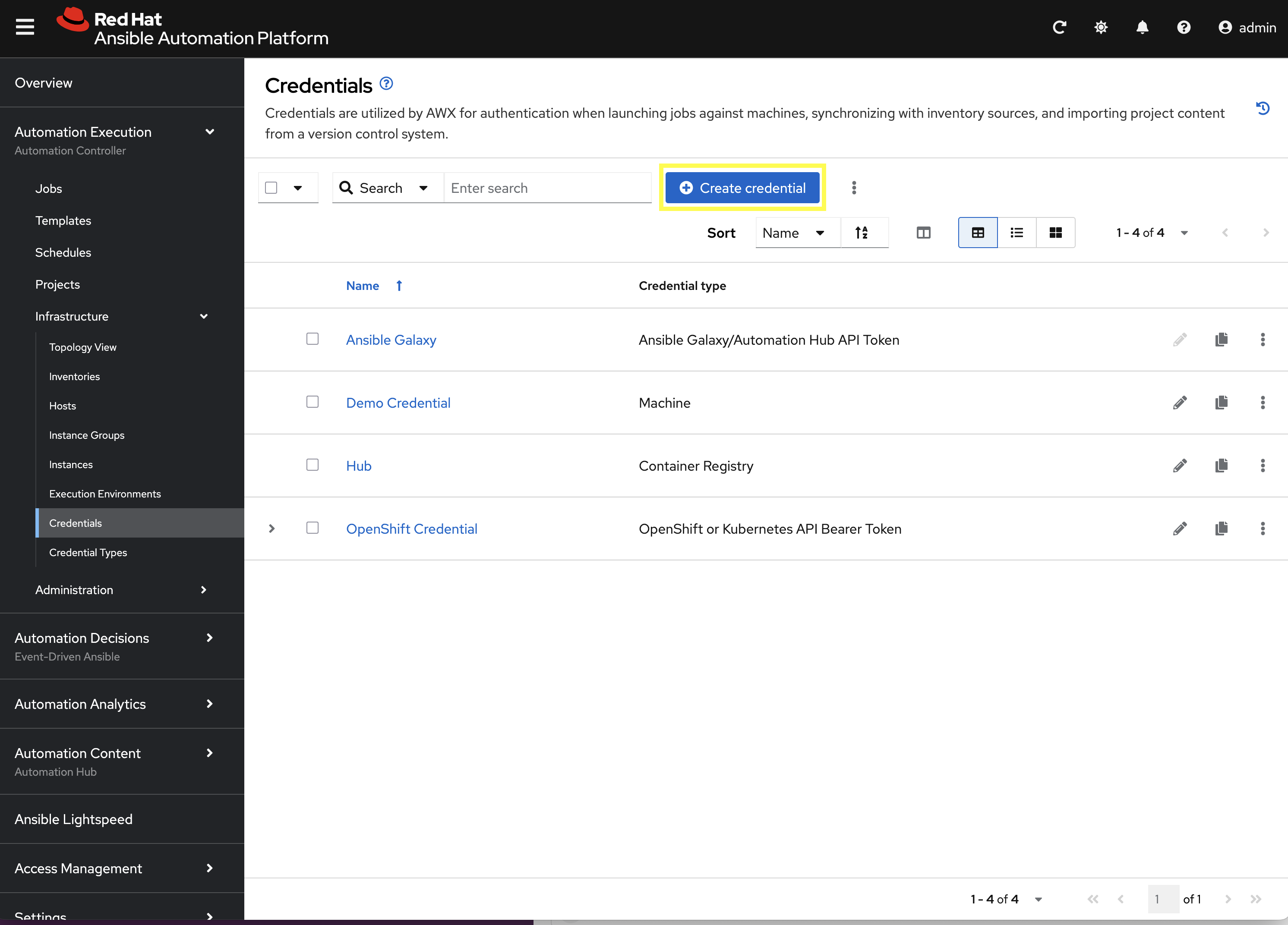
From the navigation menu on the left, expand Automation Execution and expand Infrastructure and click on Credentials.
-
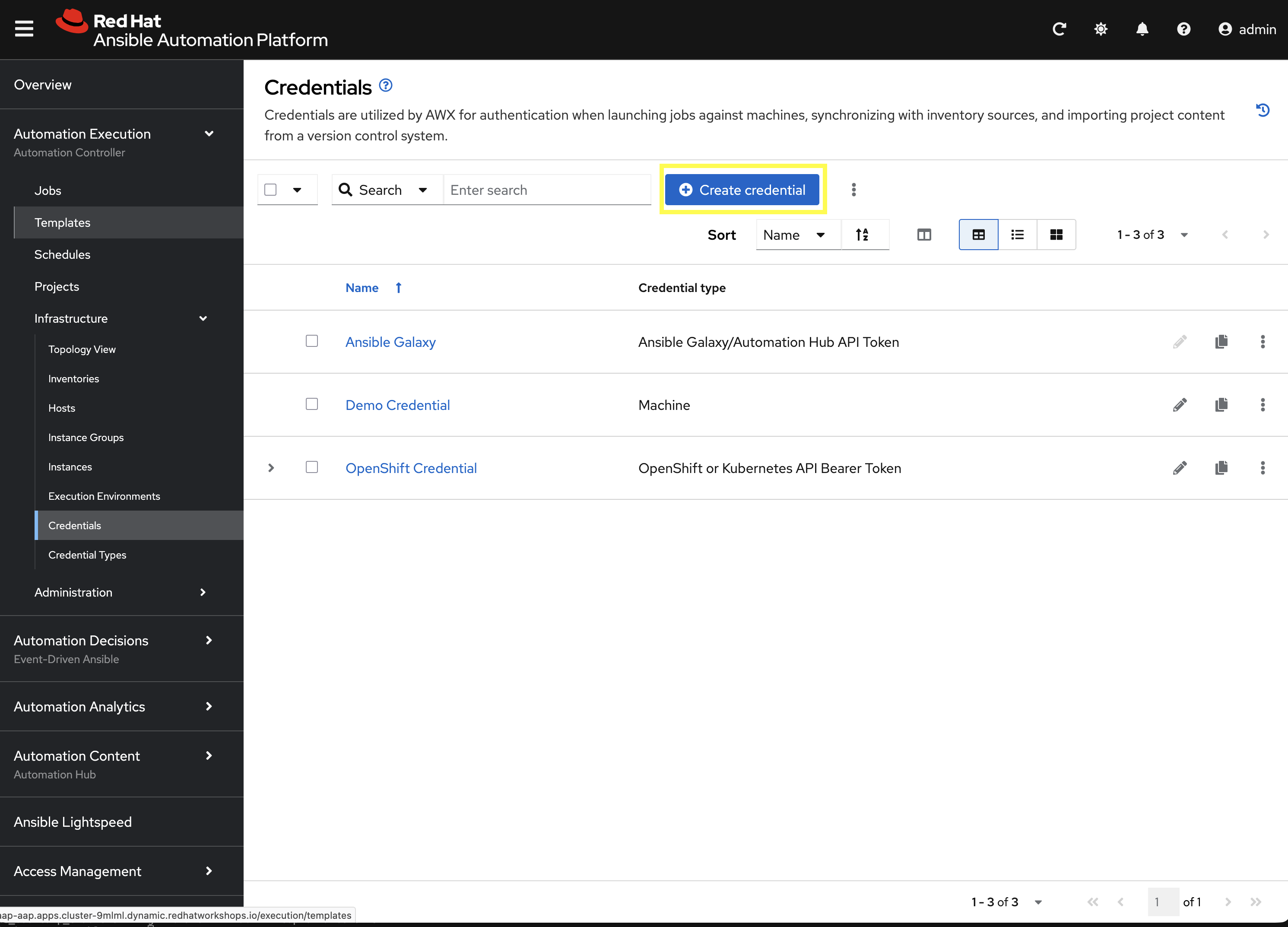
Click Create credential to add a new credential.
-
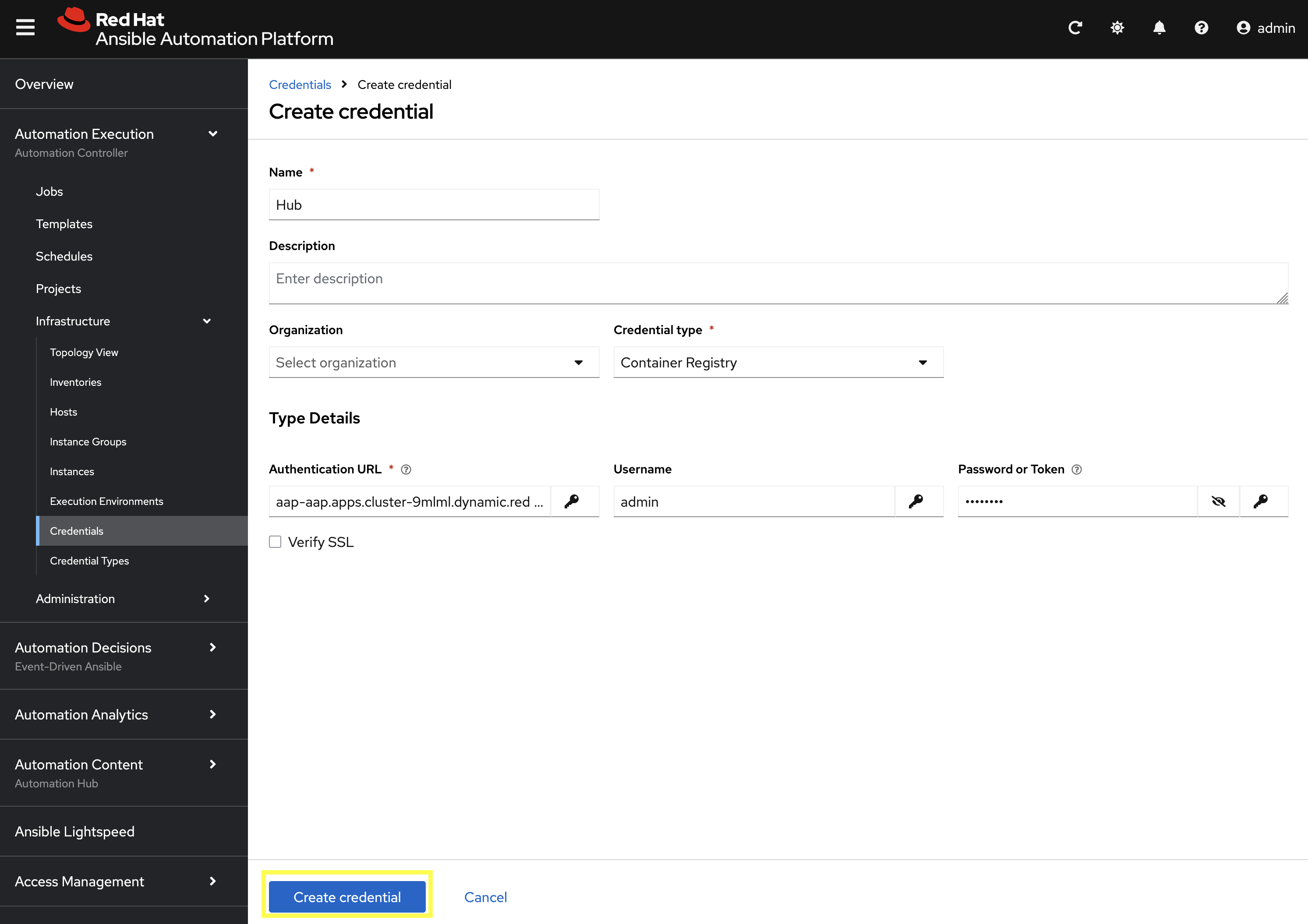
Enter the following details on the Create Credential page:
-
Name:
Hub -
Credential type:
Container Registry -
Authentication URL:
aap-aap.{openshift_cluster_ingress_domain} -
Username:
{aap_controller_admin_user} -
Password:
{aap_controller_admin_password} -
Verify SSL: Checked
-
-
Click Create credential to save the new credential.
9.2: Create a Credential for the Git Repository
Next, create a new credential to retrieve the source code from the Gitea repository.
-
From the Credentials page in Automation Controller, click Create credential once again to add a new credential.
-
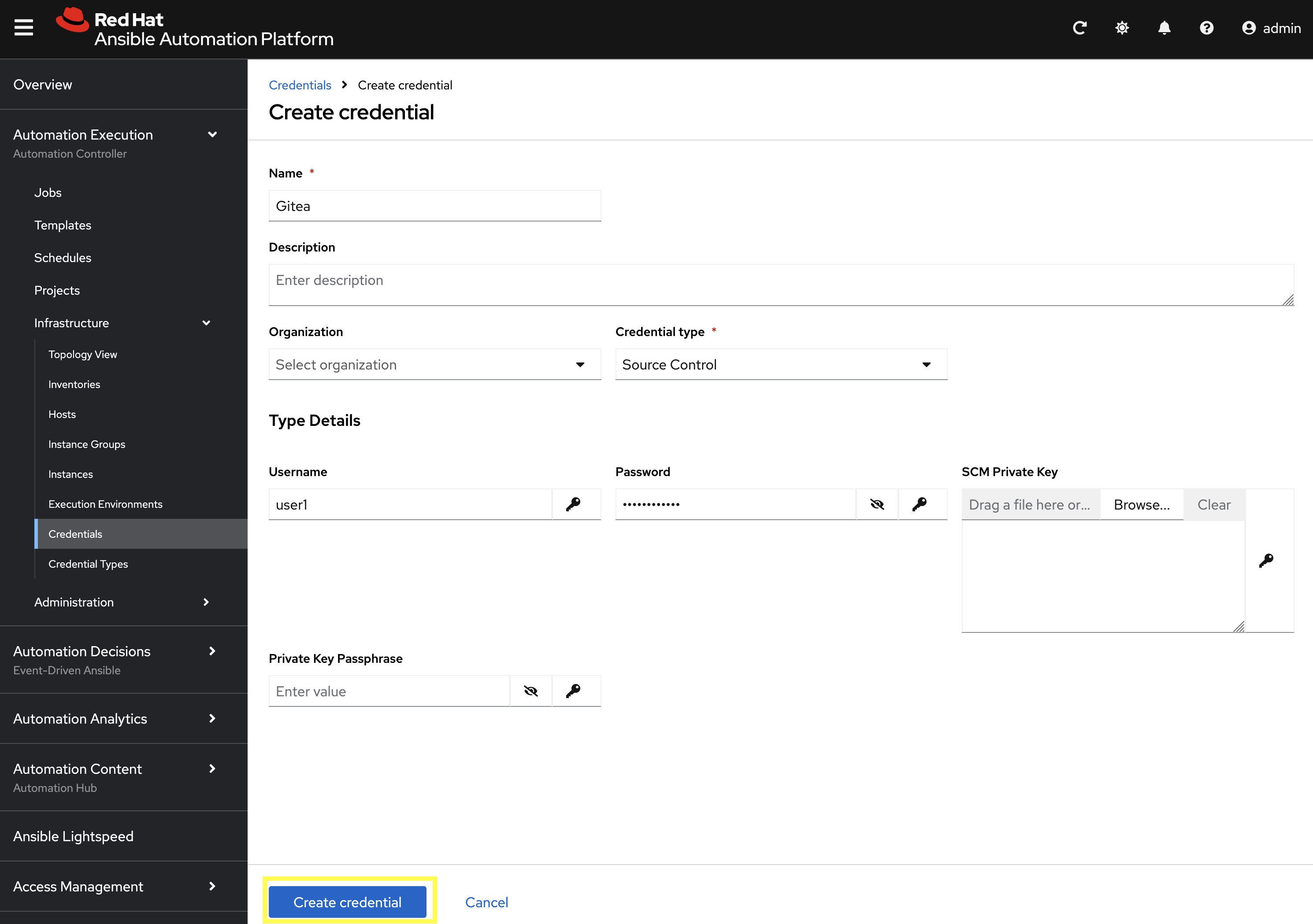
Enter the following details on the Create Credential page:
-
Name:
Gitea -
Credential type:
Source Control -
Username:
{gitea_user} -
Password:
{gitea_password}
-
-
Click Create credential to save the new credential.
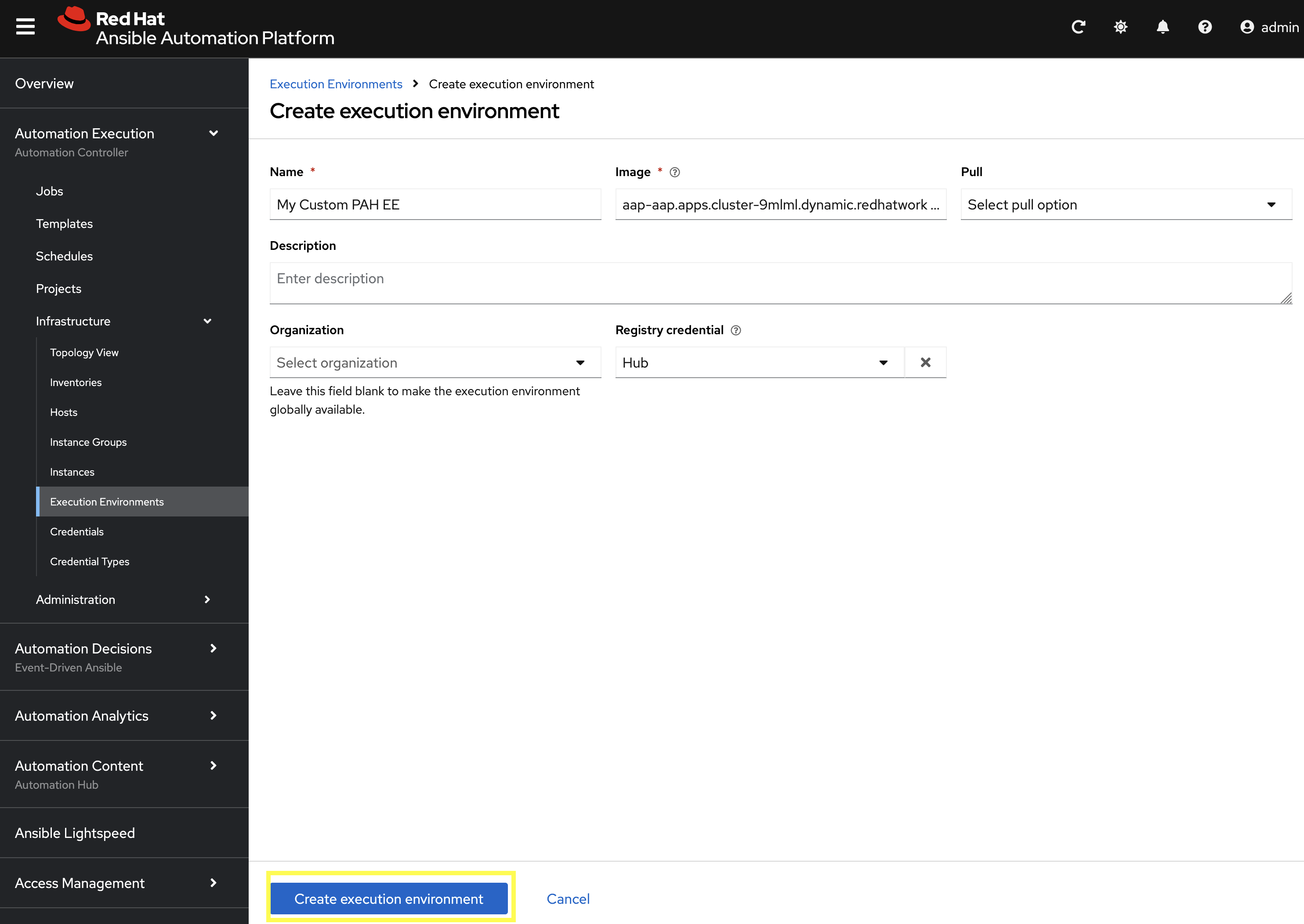
9.3: Add the Execution Environment to Controller
Next, add the custom Execution Environment that we published previously to Automation Controller.
-
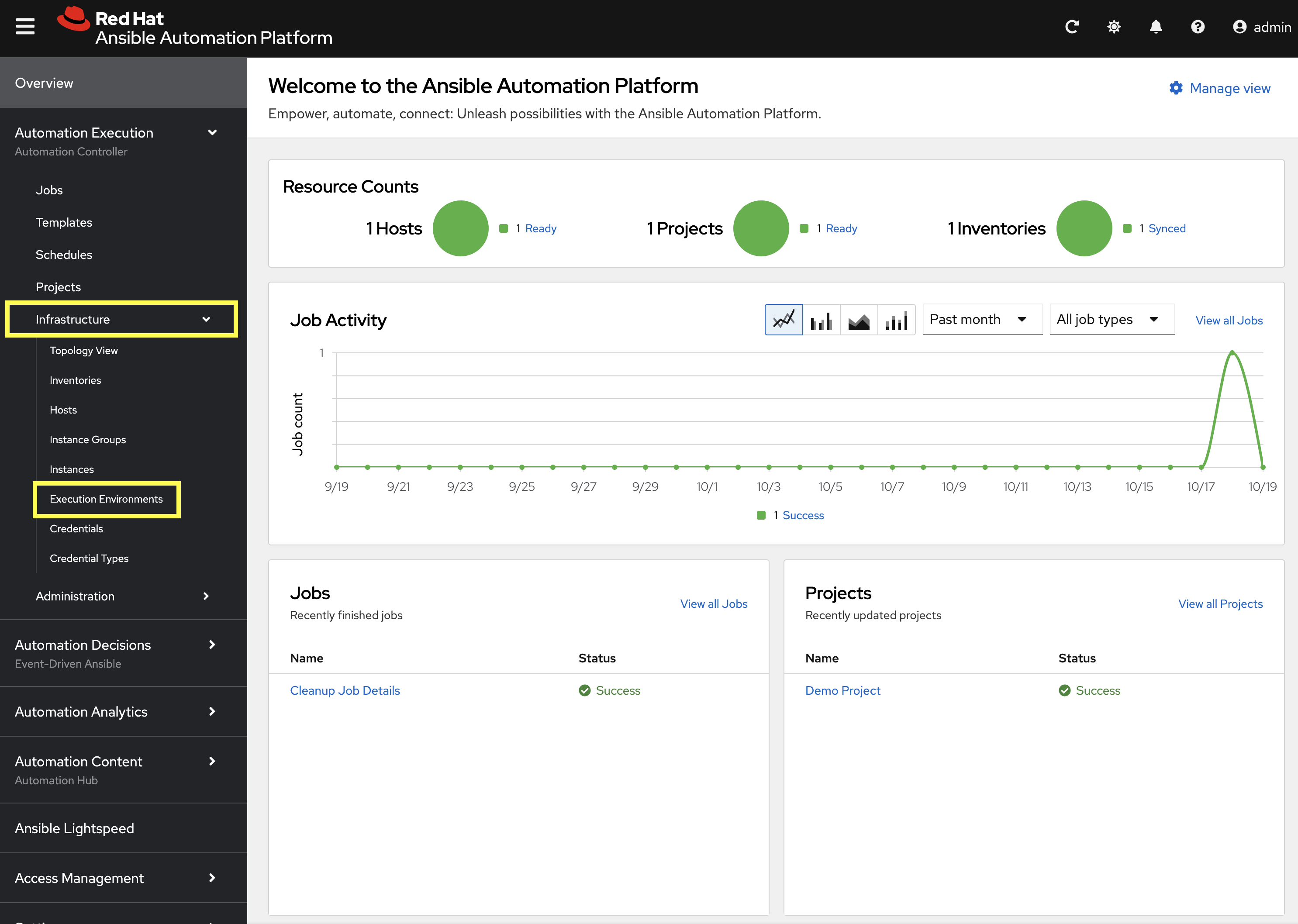
From the navigation menu on the left, expand Automation Execution and expand Infrastructure and click on Execution Environments.
-
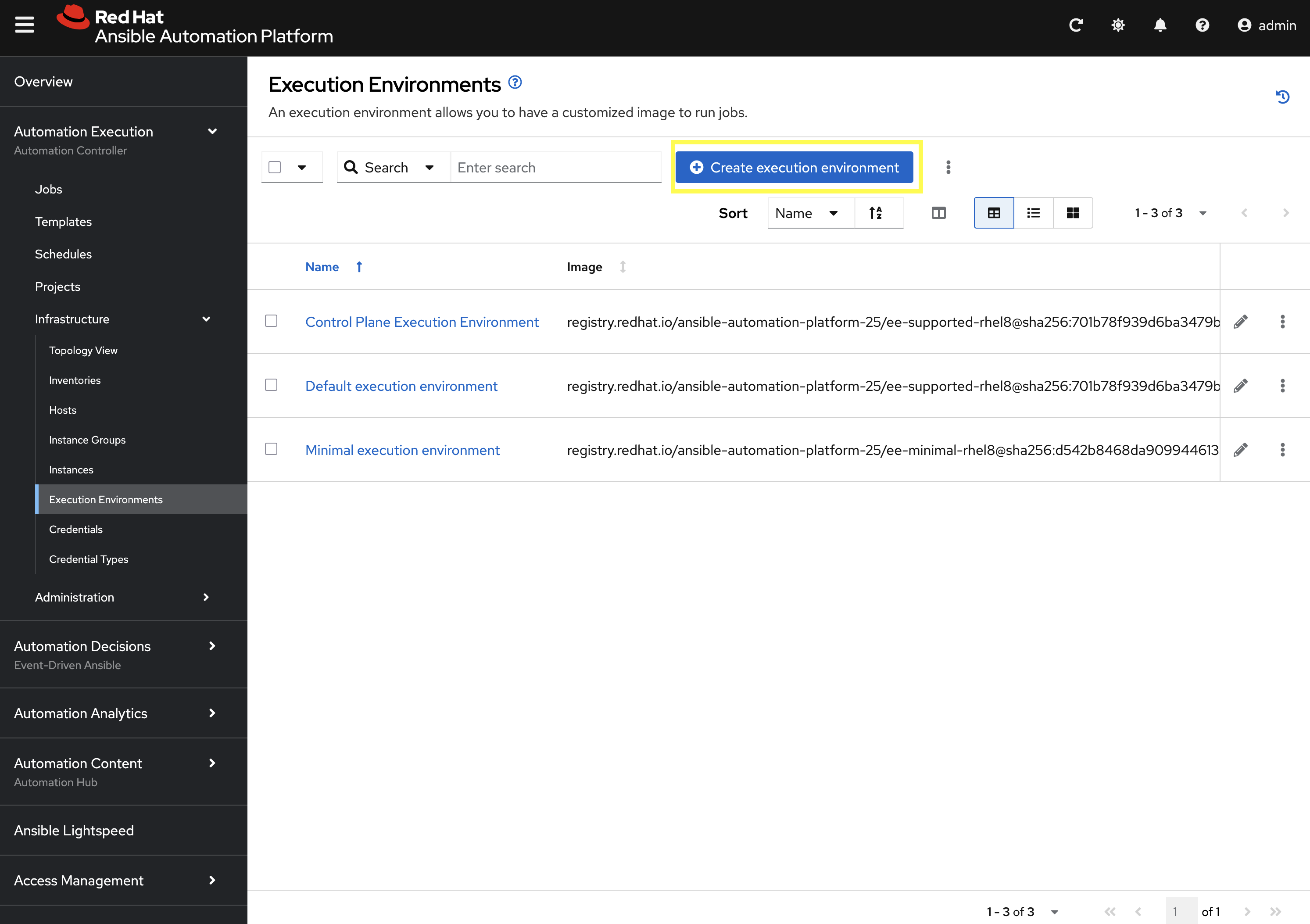
Click Create execution environment to add a new execution environment.
-
Enter the following details on the Create Execution Environment page:
-
Name:
My Custom PAH EE -
Image URL:
aap-aap.{openshift_cluster_ingress_domain}/my-pah-ee:1.1 -
Registry Credential: Select the
Hubcredential created previously.
-
-
Click Create execution environment to create the new EE.
9.4: Create a Project
Create a new Project in Automation Controller that points to your Git repository containing the playbook.
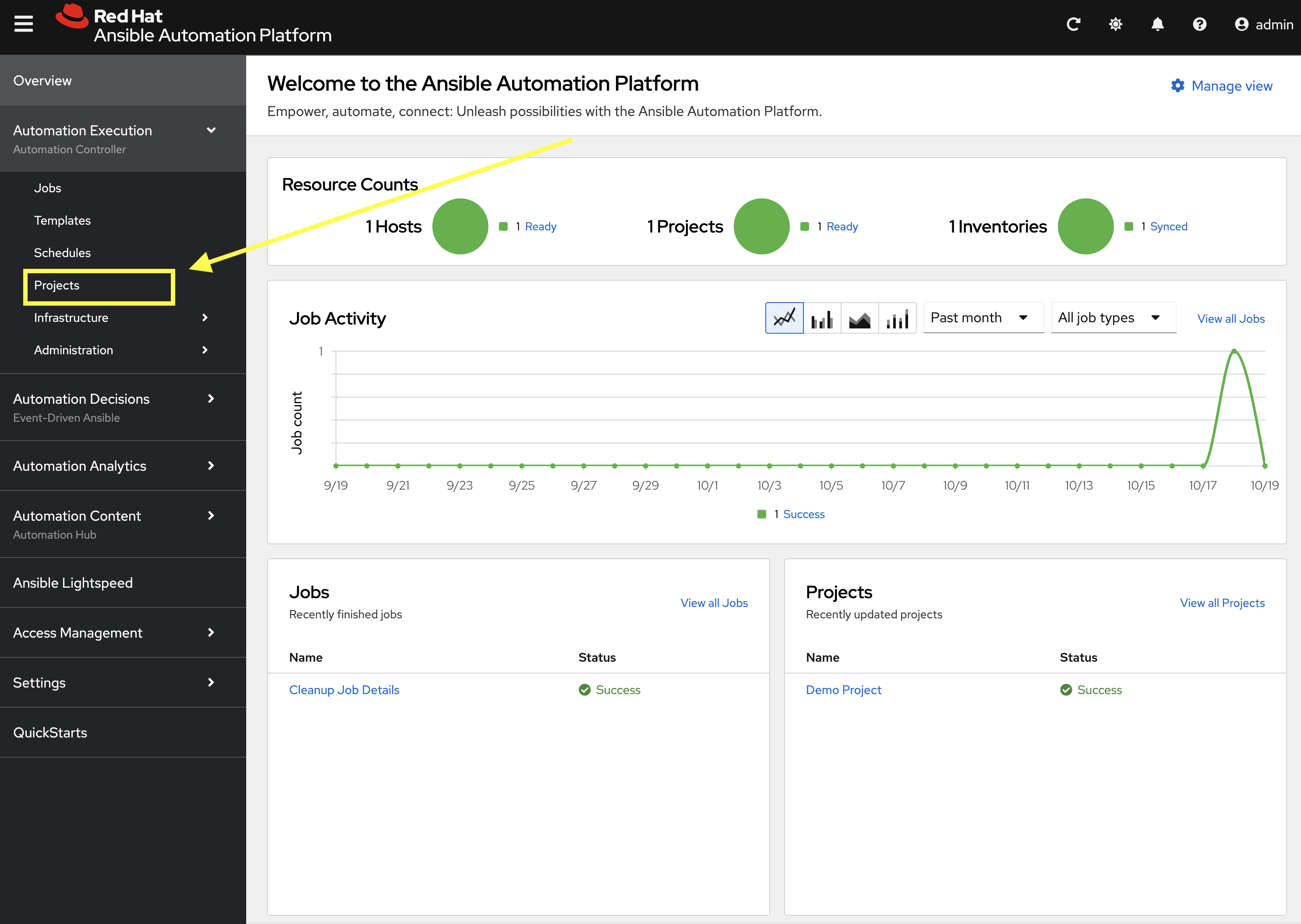
-
From the navigation menu on the left, expand Automation Execution and click on Projects.
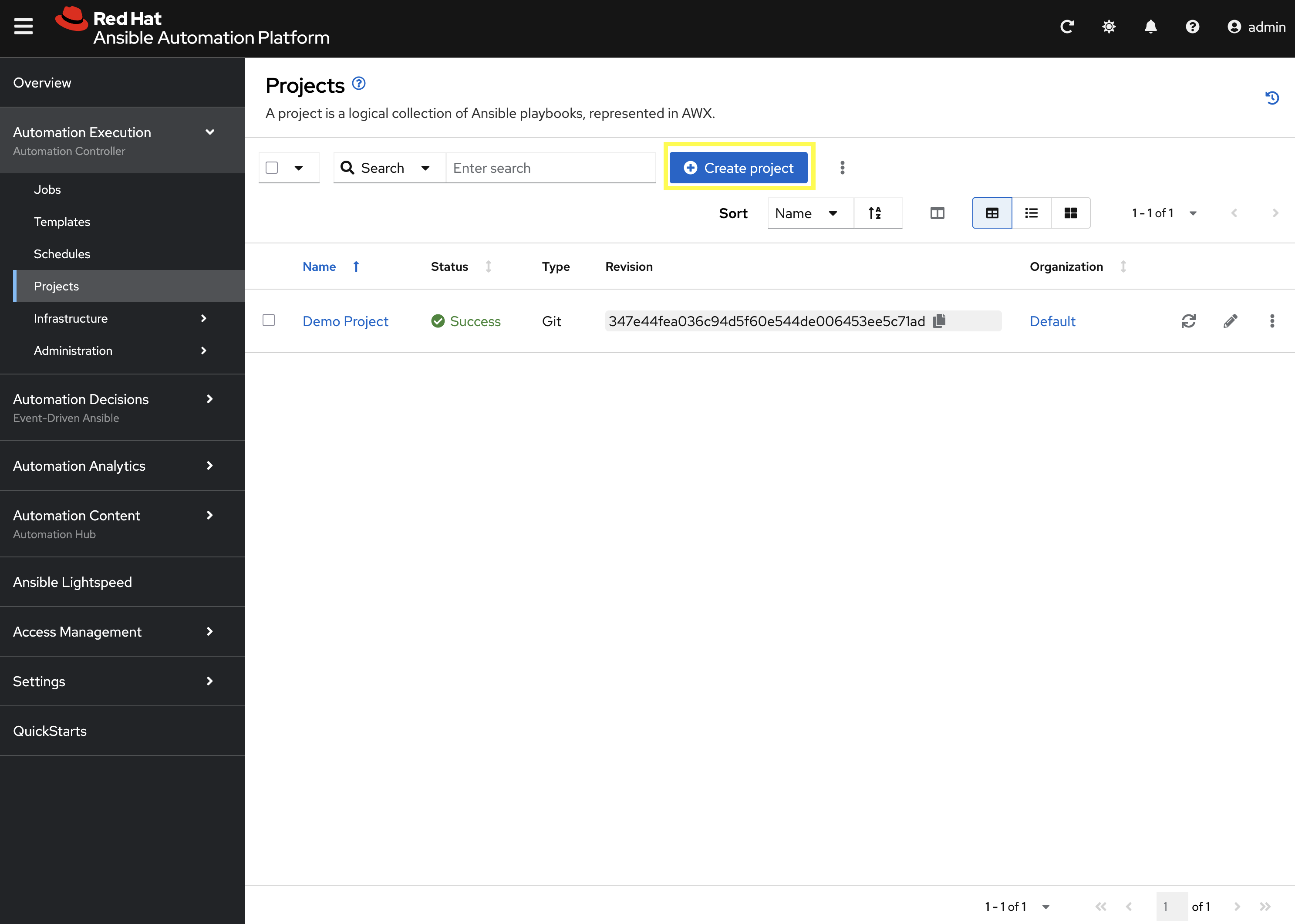
-
Click Create project to add a new project.
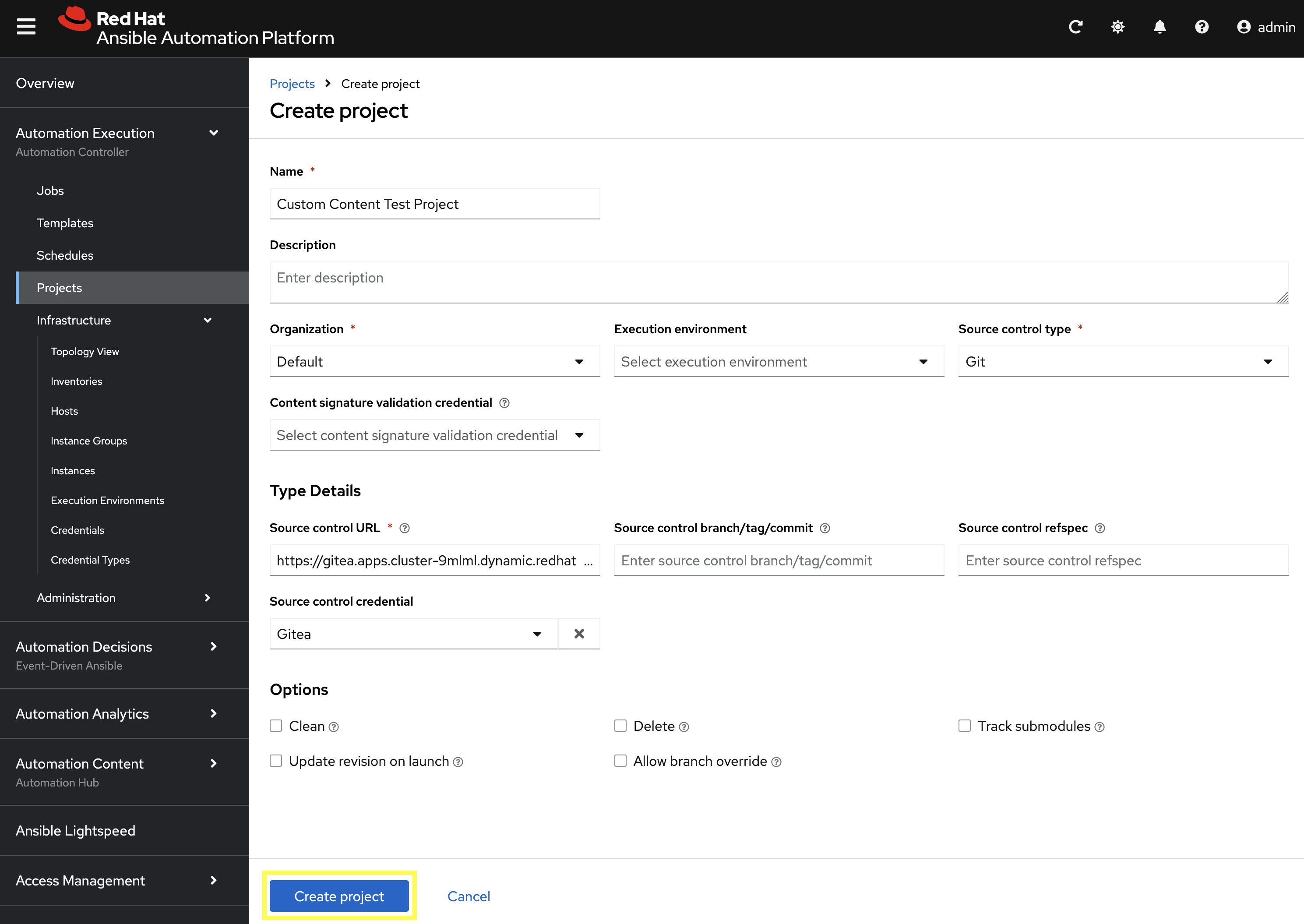
-
Enter the following details on the Create Project page:
-
Name:
Custom Content Test Project -
Organization:
Default -
Source Control Type:
Git -
Source control URL:
{gitea_console_url}/{gitea_user}/ansible_bootcamp_my_collection.git -
Source code credential: Select the
Giteacredential created previously.
-
-
Click Create project to create the new Project.
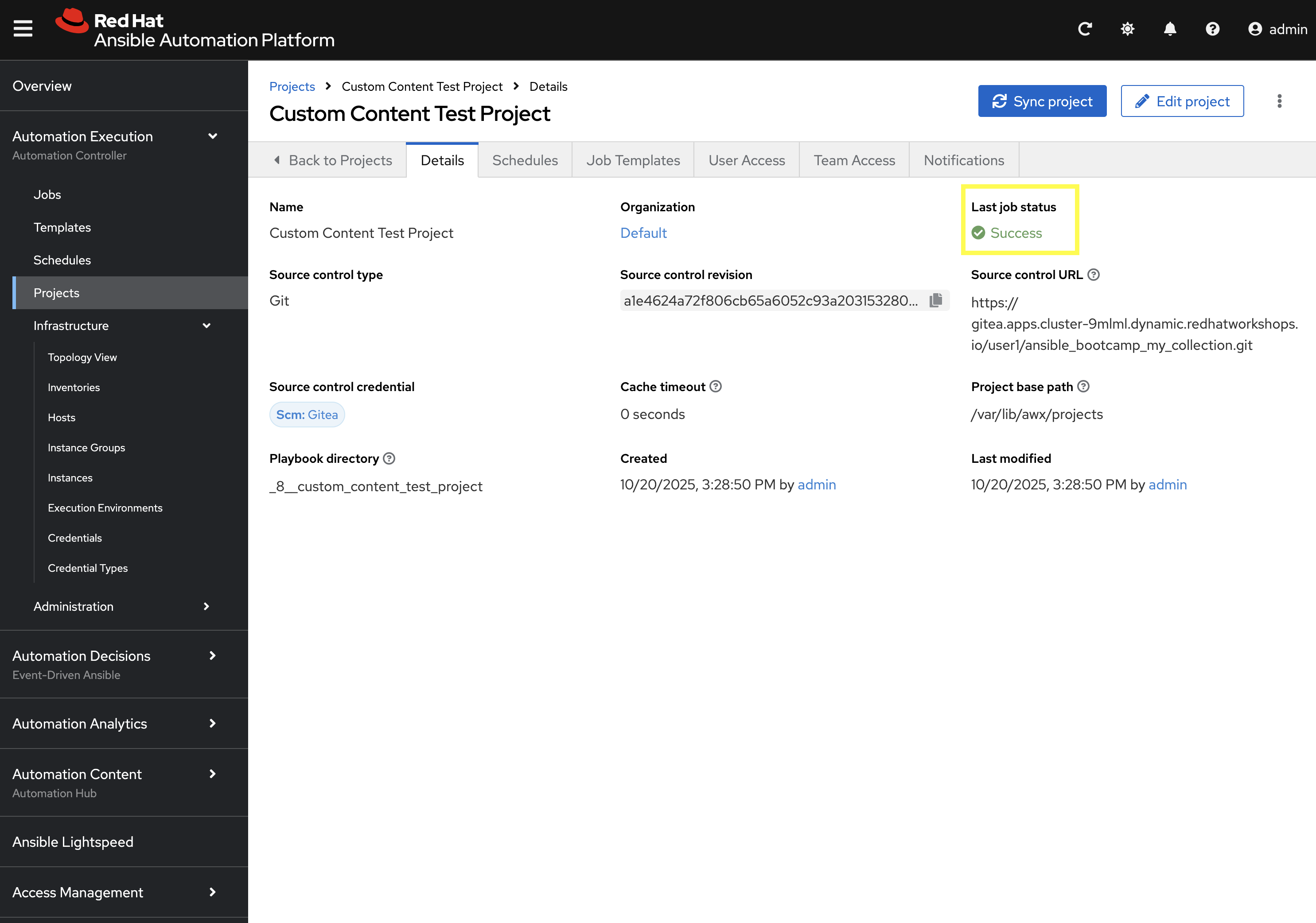
Confirm that the project has been synced successfully by looking Success underneath Last job status.
9.5: Create a Job Template
With the Execution Environment and Project created, the final step is to create a Job Template that uses both components.
-
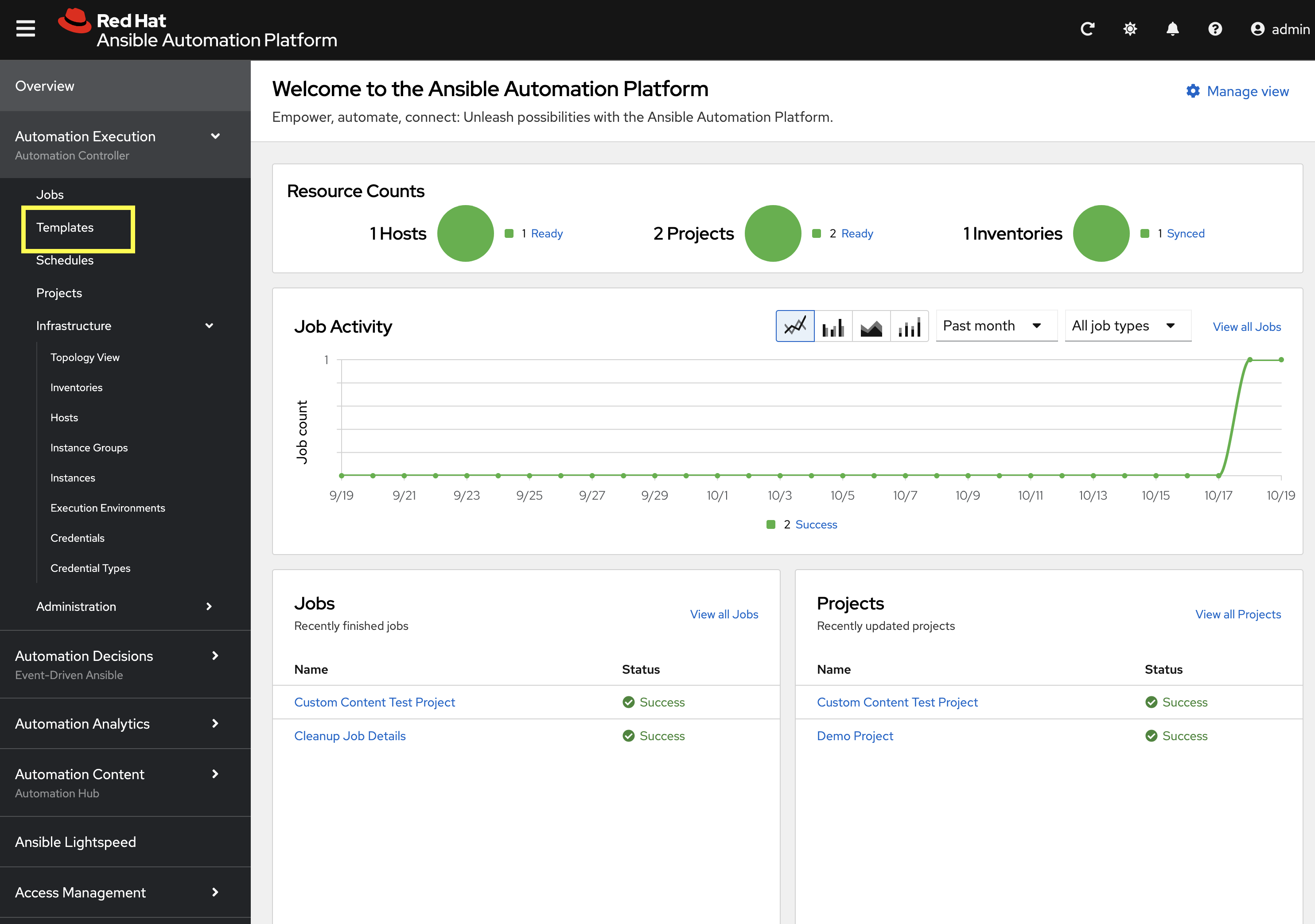
From the navigation menu on the left, expand Automation Execution and click on Templates.
-
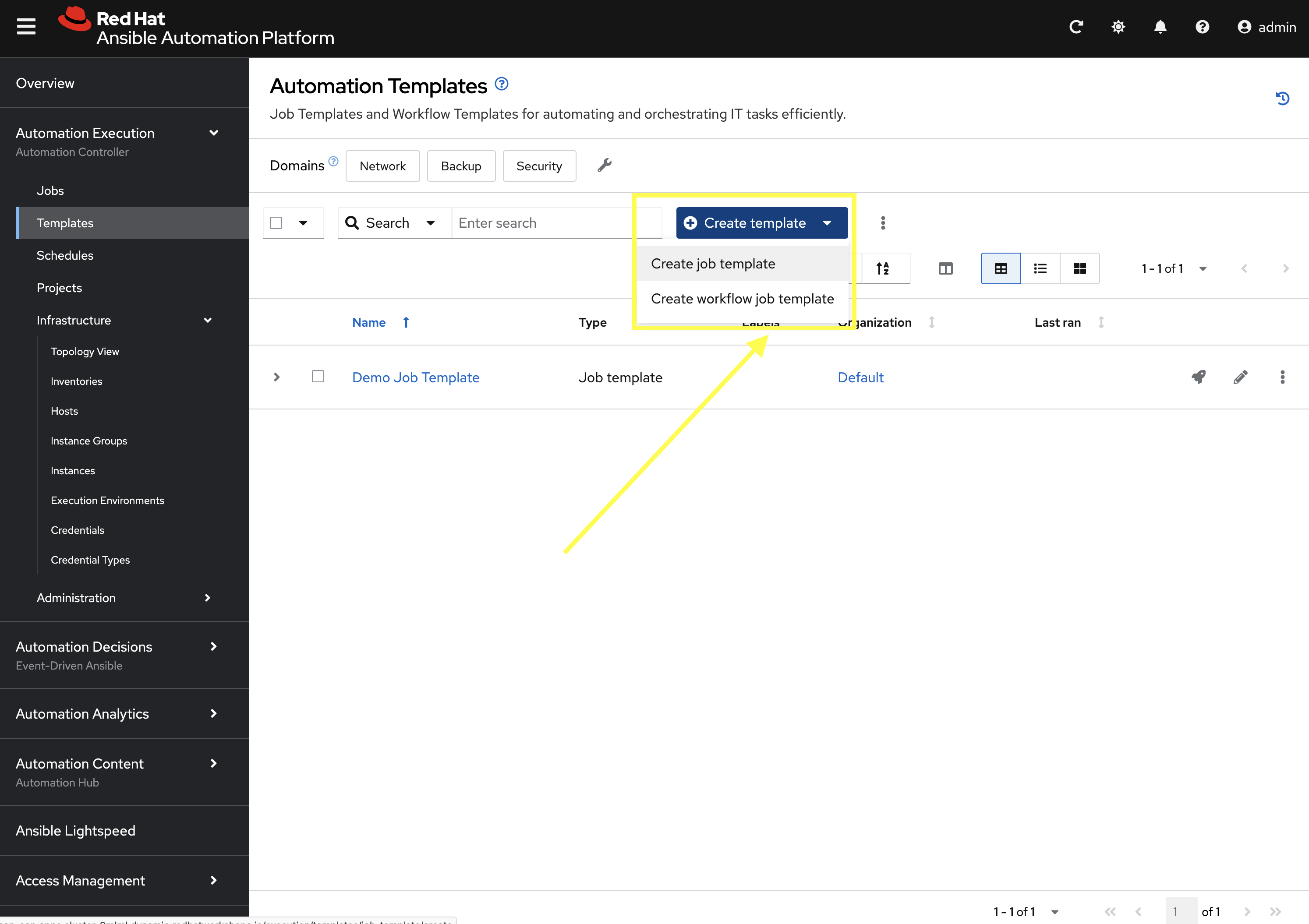
Click the Create template dropdown and select Create job template.
-
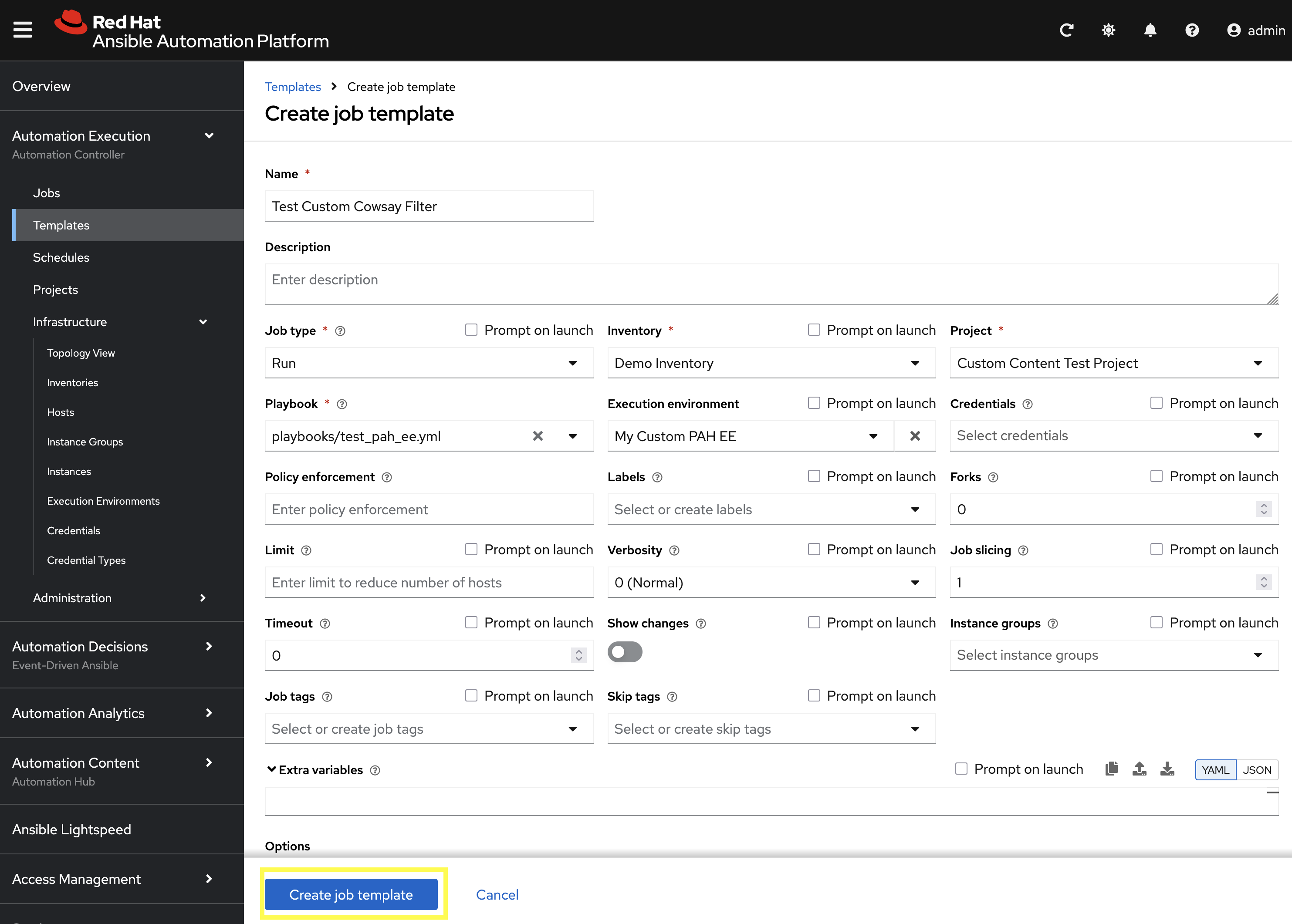
Enter the following details on the Create job template page:
-
Name:
Test Custom Cowsay Filter -
Inventory:
Demo Inventory -
Project:
Custom Content Test Project -
Playbook:
playbooks/test_pah_ee.yml -
Execution Environment:
My Custom PAH EE
-
-
Click Create job template to create the new Job Template.
9.6: Launch the Job Template and Verify
Now that the Job Template has been created, launch the Test Custom Cowsay Filter and verify that the custom filter is working as expected.
-
From the Test Custom Cowsay Filter Job Template details page, click the Launch template button on the upper right hand side.
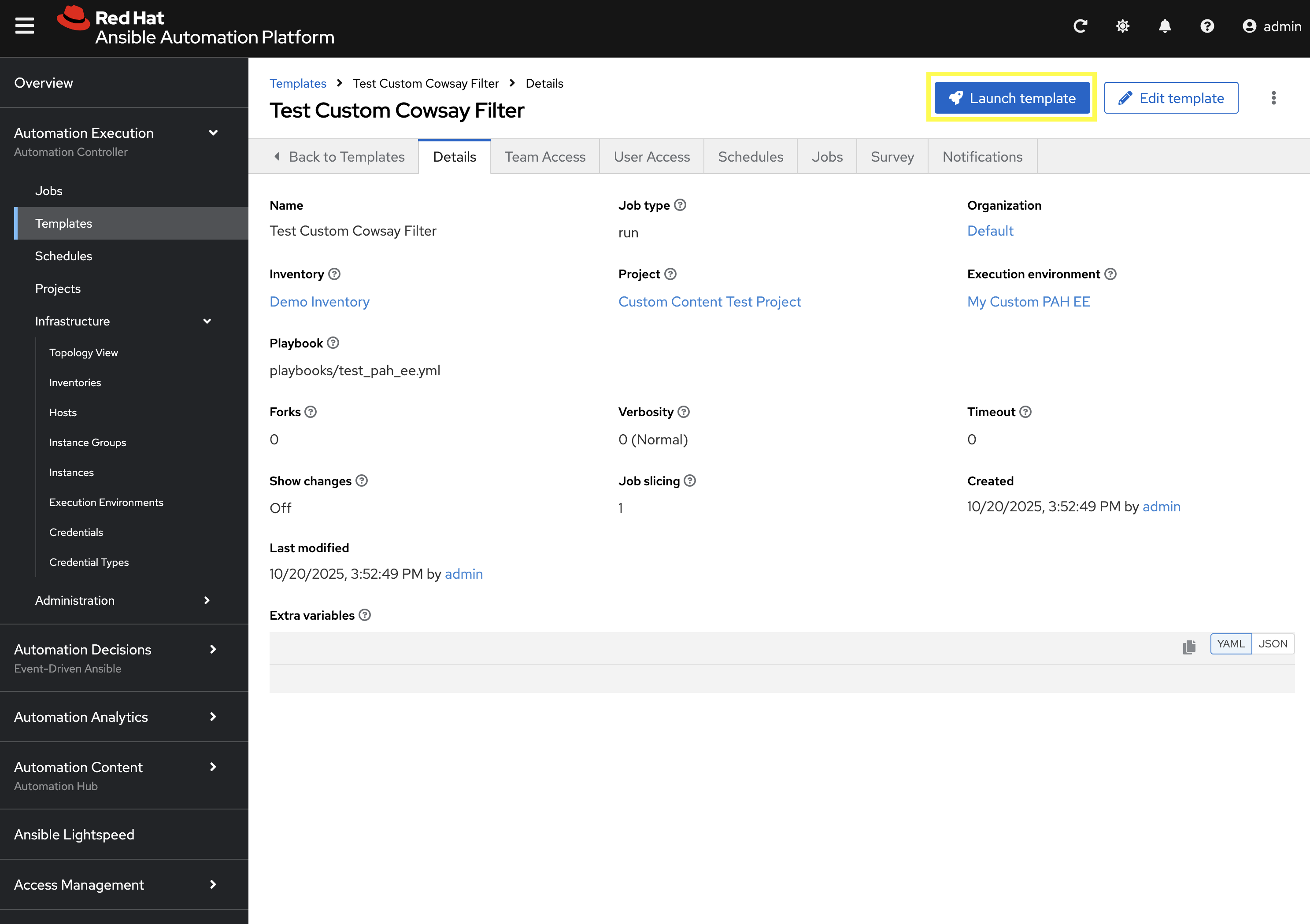
Monitor the status of the job until it completes successfully displaying the output of the cowsay filter similar to the following:
9.7: Sync collections
The final exercise in this lab is to customize the content sources from Remote Automation Hub / Ansible Galaxy instances into Private Automation Hub. To support lab exercises later in this bootcamp, we will specify additional collections to be synchronized.
9.7.1: Update Community Remote
-
From the navigation menu on the left, expand Automation Content and click on Remotes.
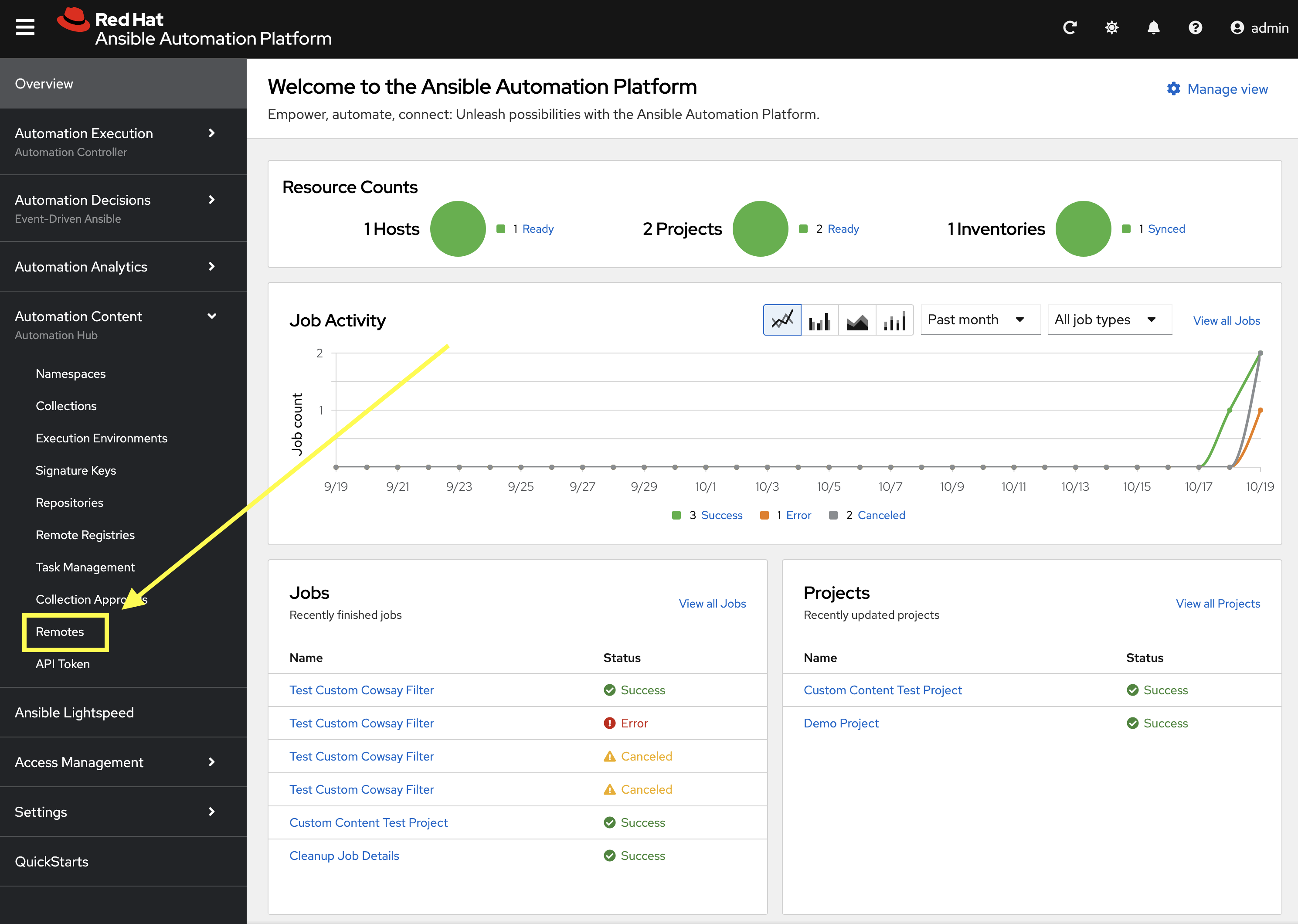
-
Click the pencil icon to edit the
communityremote.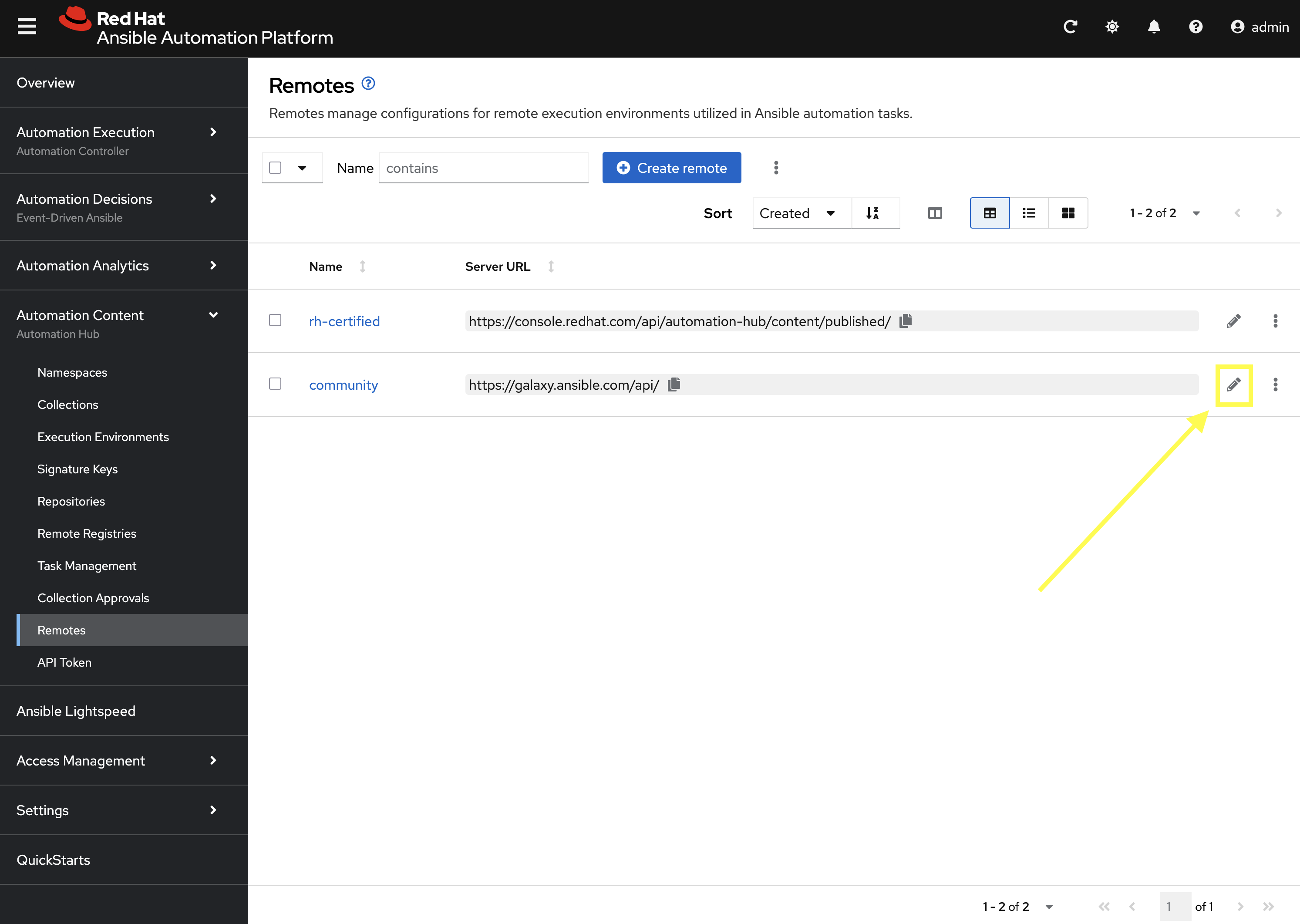
-
Paste the following into the Requirements file field to specify additional collections to be synced:
collections: - name: containers.podman - name: community.postgresql -
Click Save remote to apply the changes.
9.7.2: Add Validated Remote
Create a new remote for the validated collections repository. A token for Red Hat Automation Hub is required to access this repository.
-
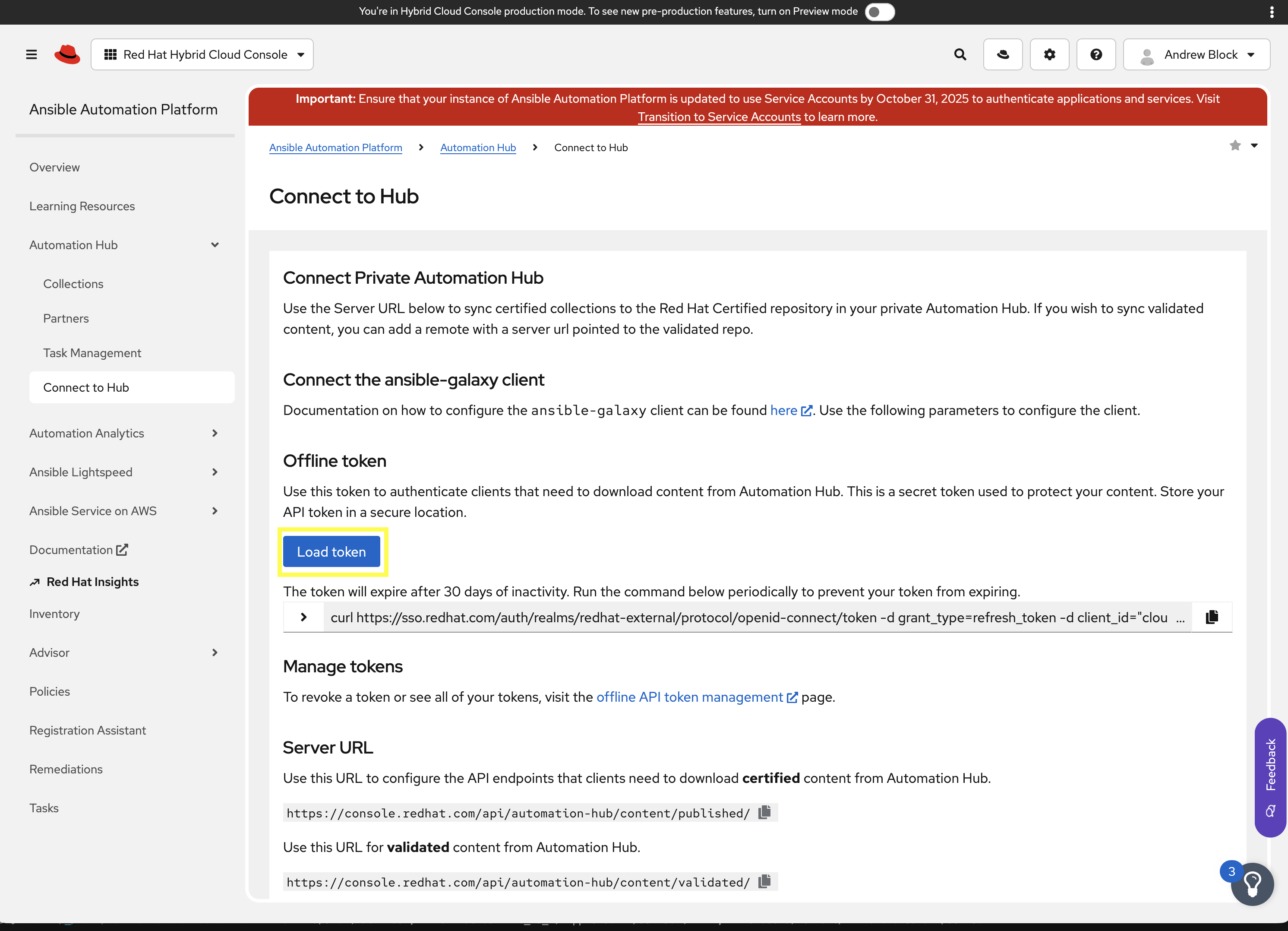
Navigate to Red Hat Automation Hub and click here to generate a token
-
Click Load token to generate a new token and copy it to your clipboard.
-
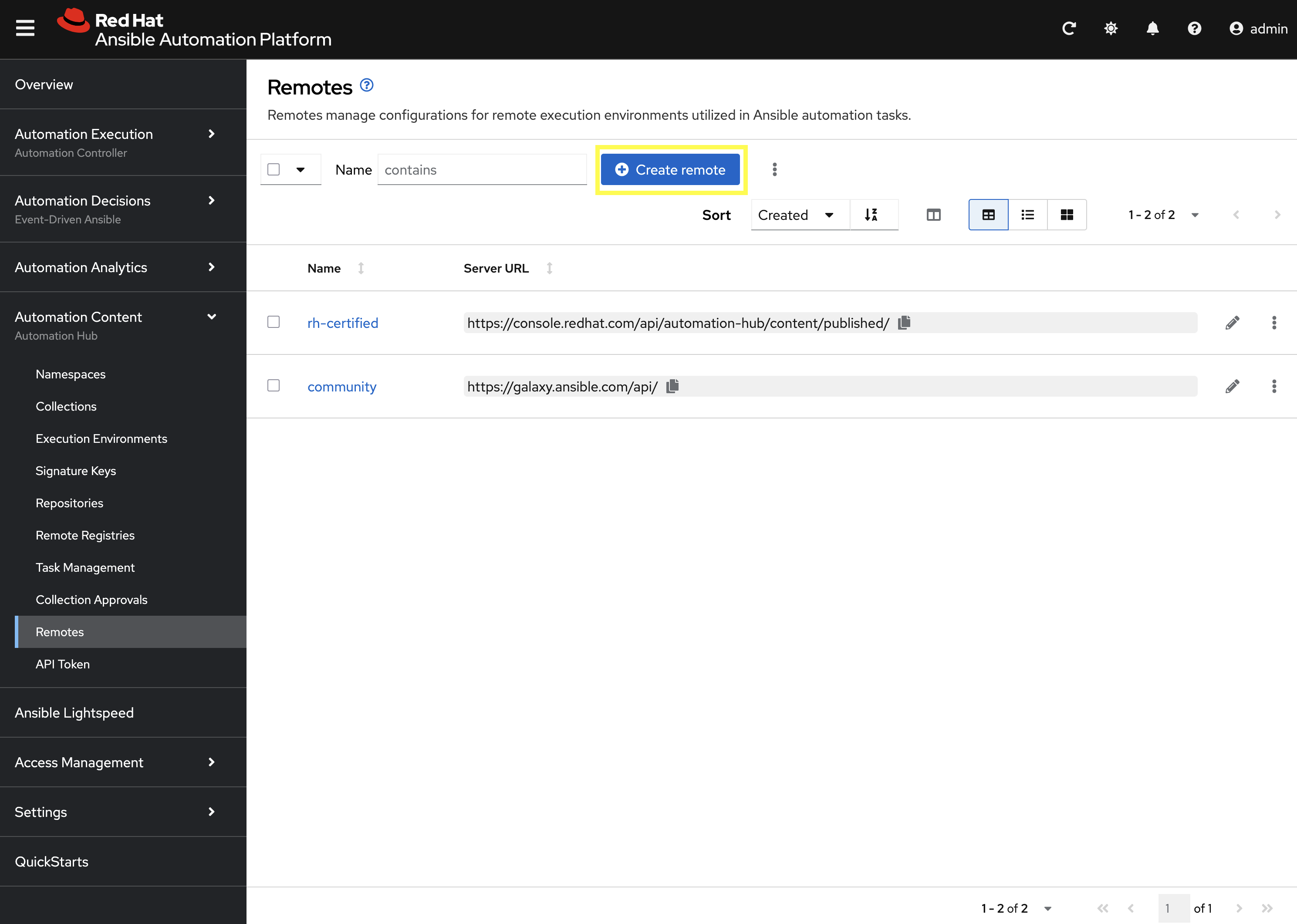
From the Remotes page in Private Automation Hub, click Create remote.
-
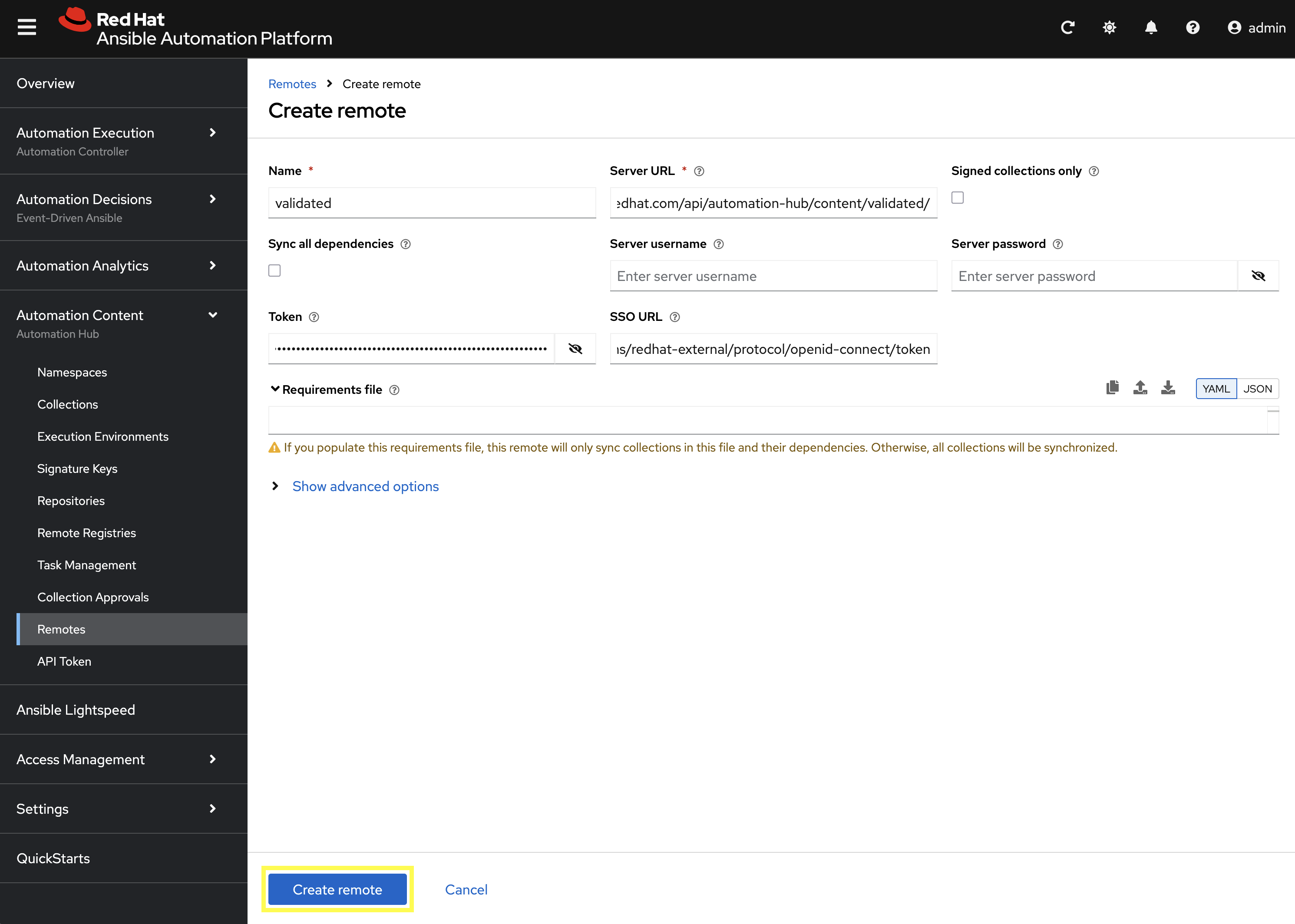
Enter the following details on the Create remote page:
-
Name:
validated -
Server URL:
https://console.redhat.com/api/automation-hub/content/validated/ -
SSO URL:
https://sso.redhat.com/auth/realms/redhat-external/protocol/openid-connect/token -
Token:
<The token copied previously from Red Hat Automation Hub>
-
-
Click Create remote to create the new Remote.
Now that the validated remote has been created, update the validated repository to reference the newly created remote.
-
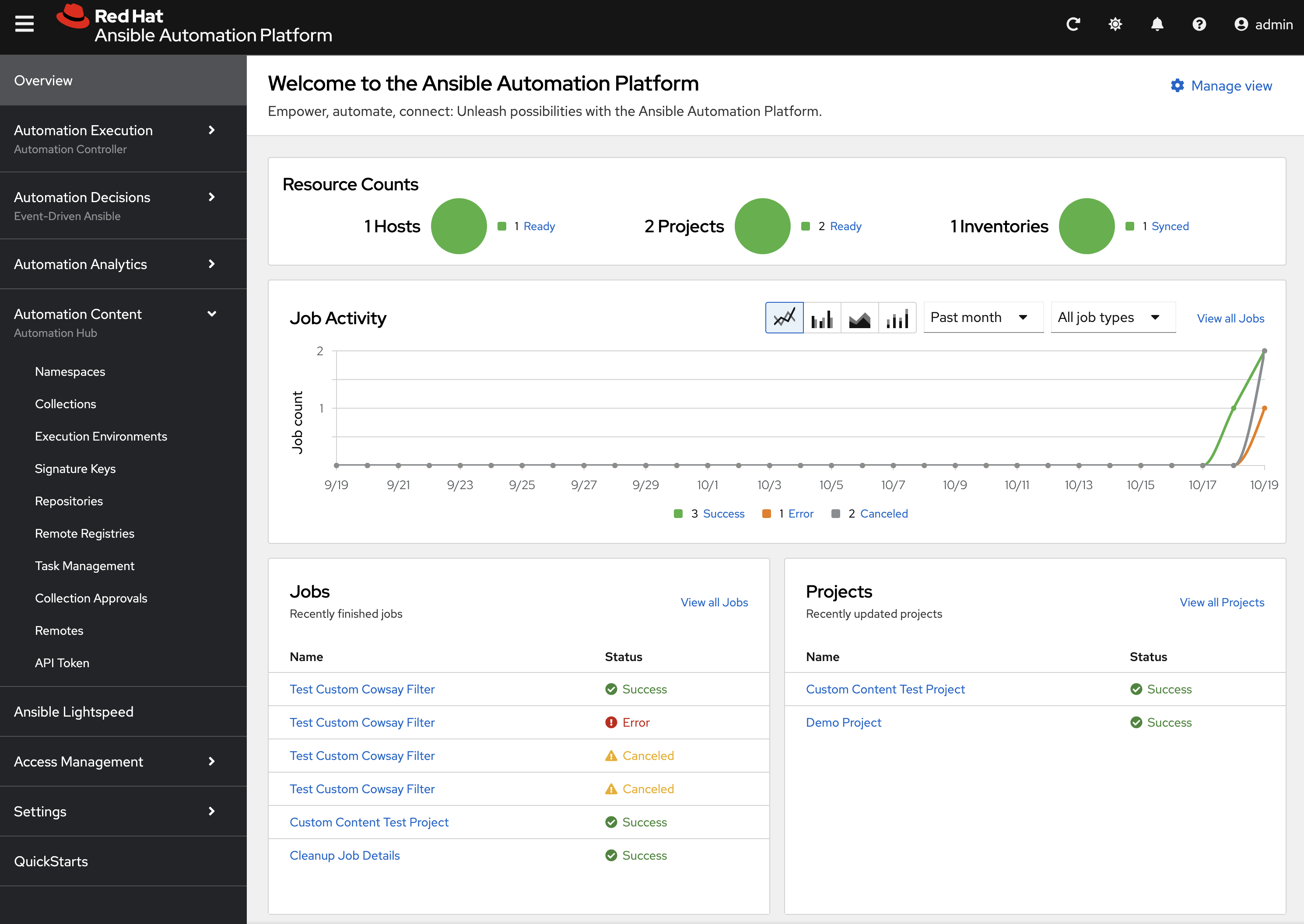
From the navigation menu on the left, expand Automation Content and click on Repositories.
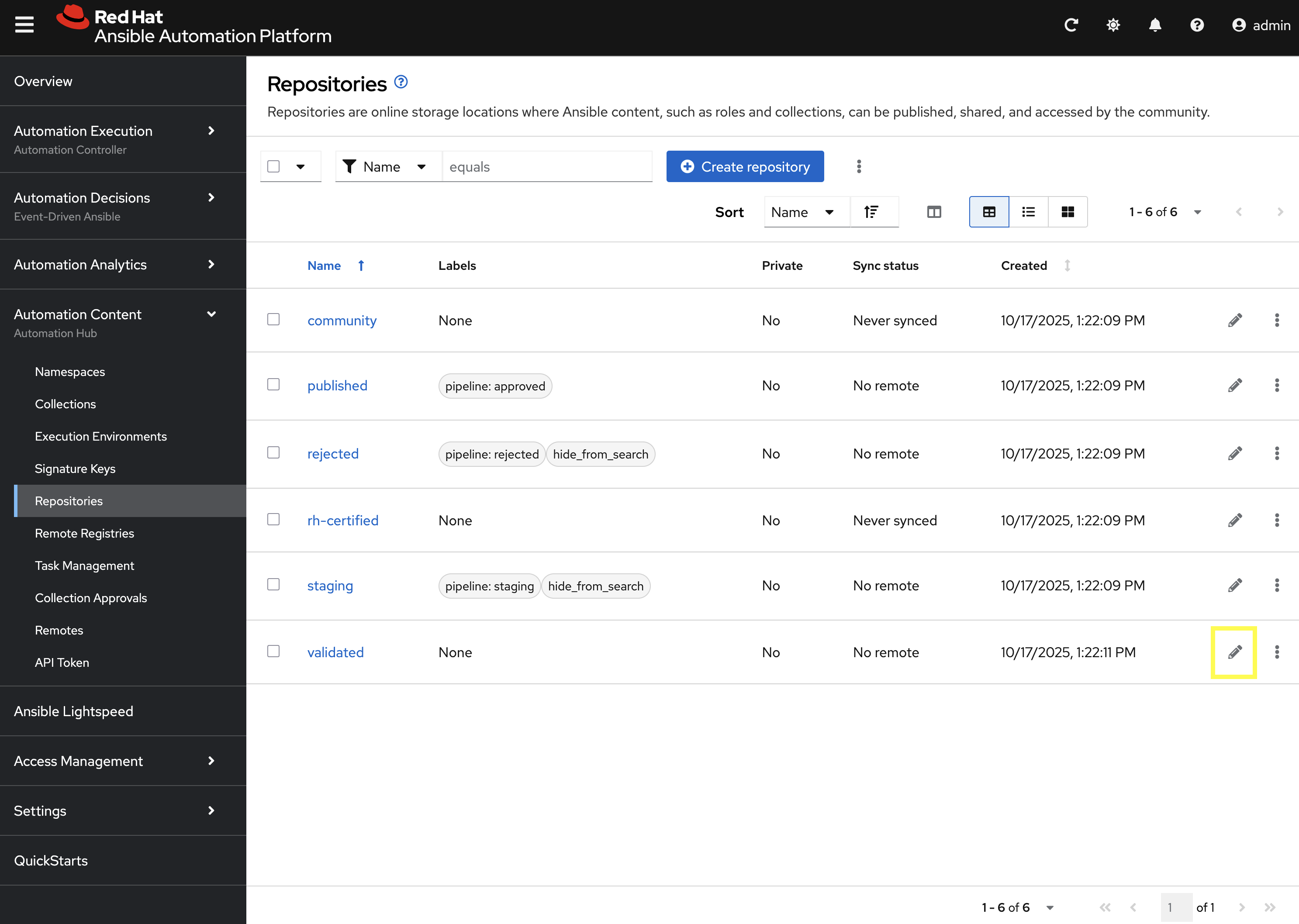
-
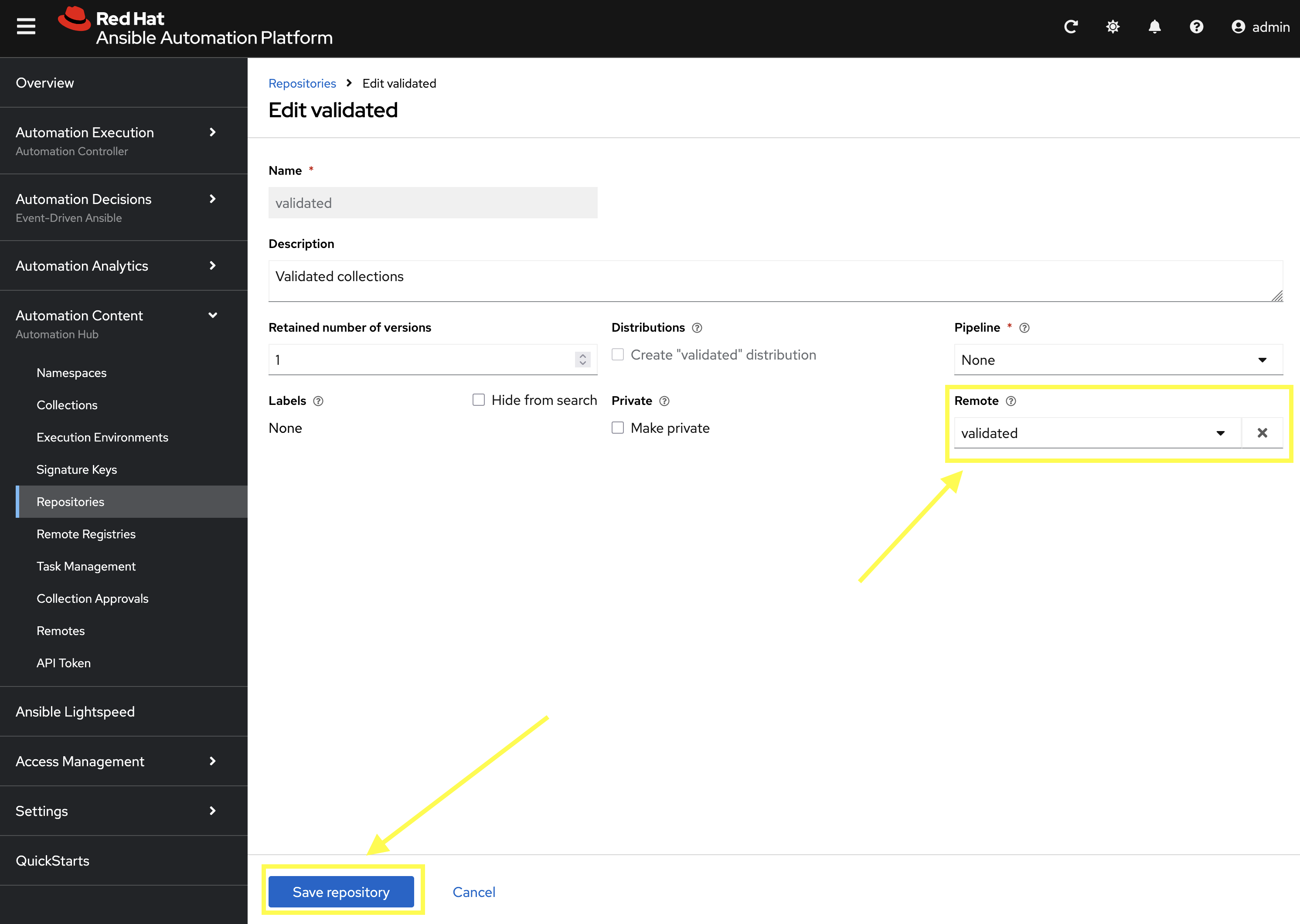
Edit the validated repository by selecting the pencil icon
-
Update the
Remotefield by selectingvalidatedfrom the drop down. -
Click Save repository to update the repository.
9.7.3: Update RH-Certified Remote
Now that you have a Red Hat Automation Hub token, update the rh-certified remote to use this value as well.
-
From the Remotes page in Private Automation Hub, edit the
rh-certifiedremote by selecting the pencil icon.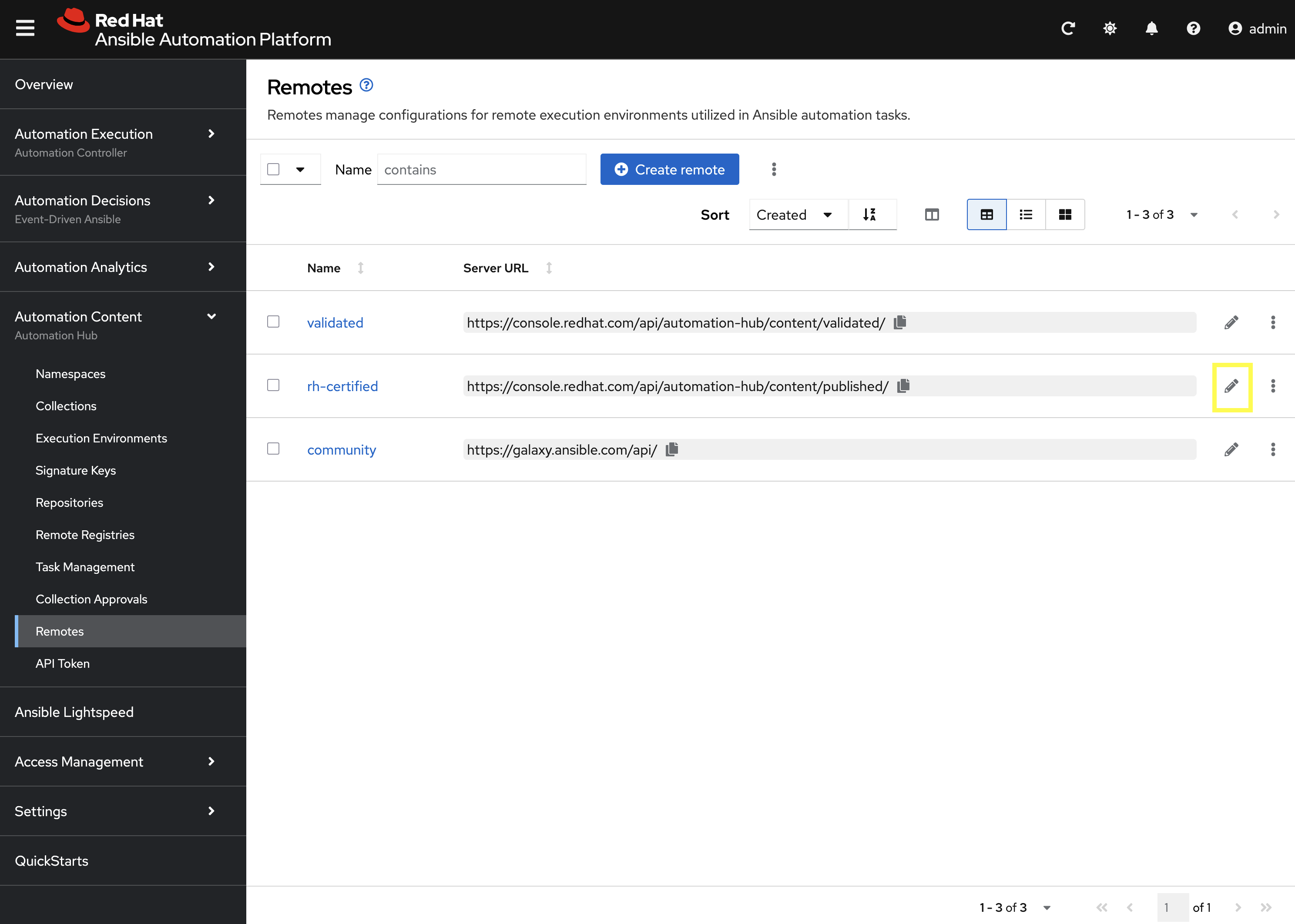
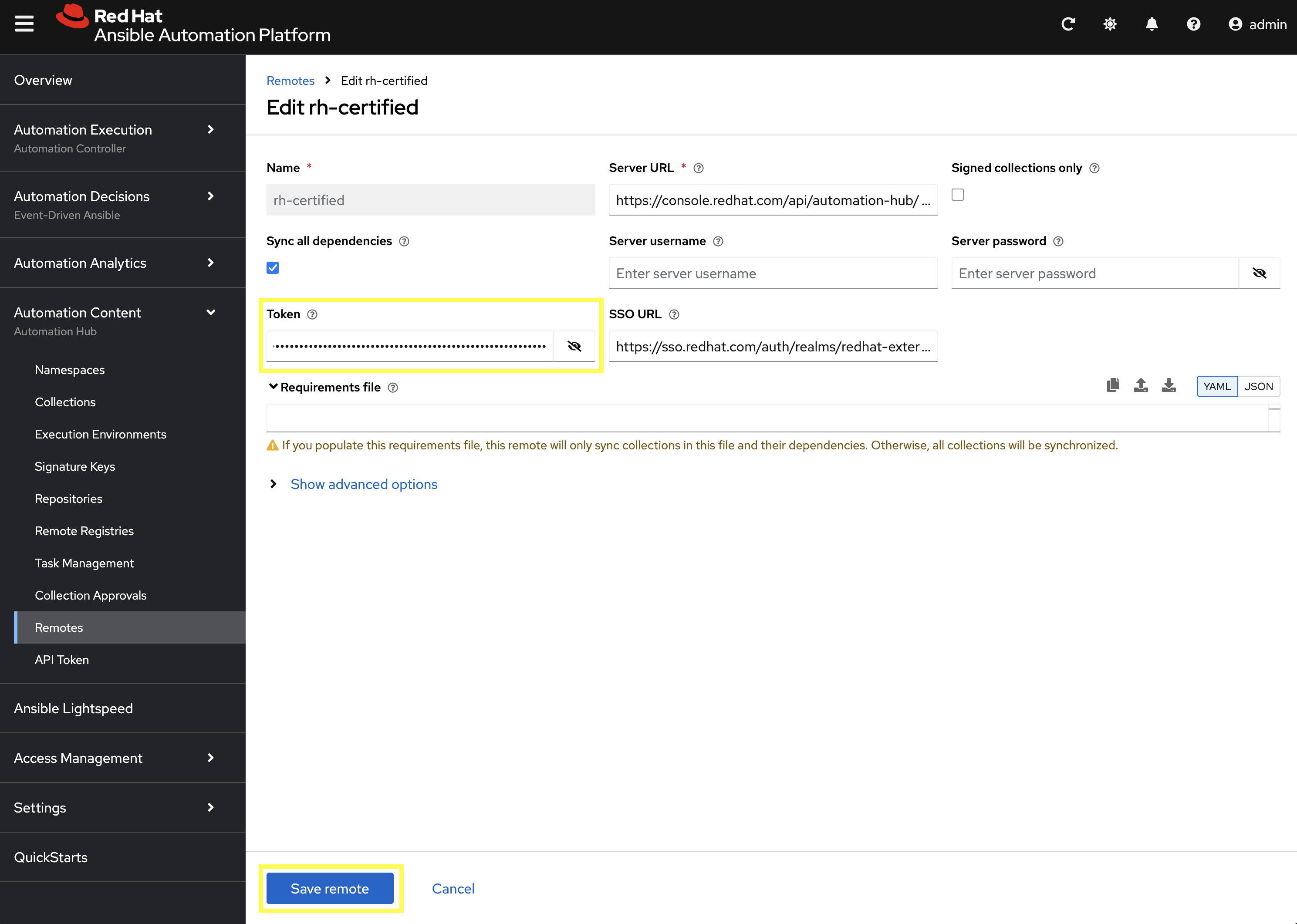
-
Update the Token field by pasting the token copied previously from Red Hat Automation Hub.
-
Click Save remote to apply the changes.
9.7.4: Sync Repositories
Finally, synchronize the rh-certified, validated, and community repositories to pull in the new collections within the Repositories page.
-
From the navigation menu on the left, expand Automation Content and click on Repositories.
-
Next to the
communityrepository, click the kebab menu (three vertical dots) on the right hand side of the entry and select Sync repository.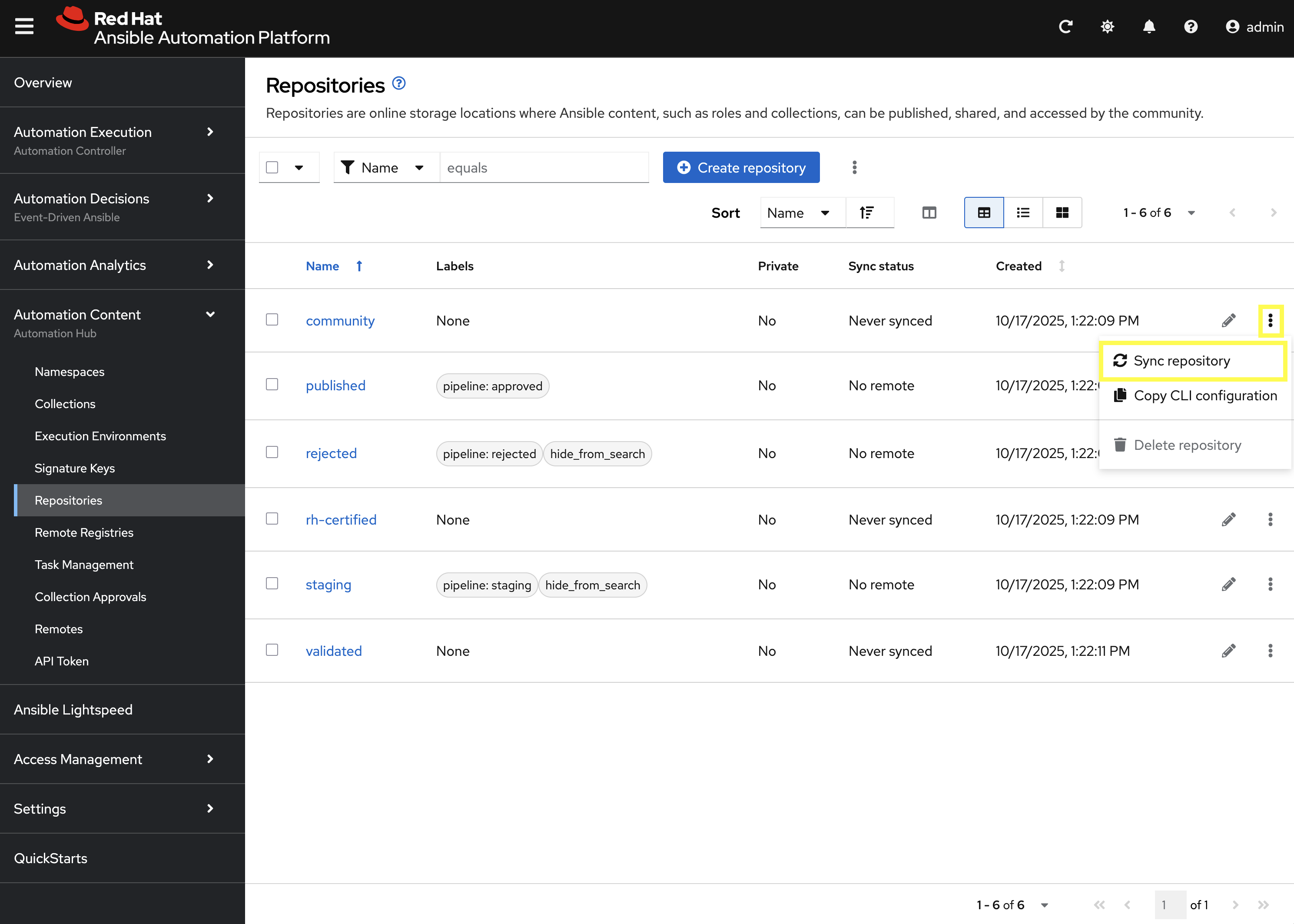
-
Repeat the above steps to sync the
rh-certifiedandvalidatedrepositories as well.
| Syncing the rh-certified collections will take some time. You can monitor the progress, but it will not impact the next set of labs in this bootcamp. |
Conclusion
Congratulations! You have successfully mastered the complete lifecycle of managing Ansible content in enterprise environments:
-
Environment Setup: Configured your local environment to connect to a Private Automation Hub
-
Content Creation: Built and published custom collections with advanced functionality (including filter plugins)
-
Environment Management: Created custom Execution Environments with specific toolsets and dependencies
-
Hub Integration: Configured Private Automation Hub for content distribution and management
-
Controller Integration: Connected Automation Controller with custom content and environments
-
End-to-End Validation: Verified the complete automation workflow from development to execution
This foundation enables you to create, manage, and distribute automation content at enterprise scale while maintaining security, compliance, and governance standards. The skills learned here are essential for managing automation in large organizations where content needs to be curated, controlled, and distributed efficiently.